How to add Wedibox to a Minted website
Embed widgetEmbed widget
Minted wedding websites don’t accept custom code, so the Wedibox widget can’t be pasted directly onto the page. Wedibox solves this with a link integration: you get a shareable link to your photo collection page (where guests upload and browse photos) and place that link on your Minted site.
Plan: Embed widget · Where: wedibox.com/w/embed/setup → select Minted
Before you start
- Have your Minted wedding website set up and know how to open its editor.
- The Free embed plan (up to 50 uploads) is enough to set up and test.
Steps
-
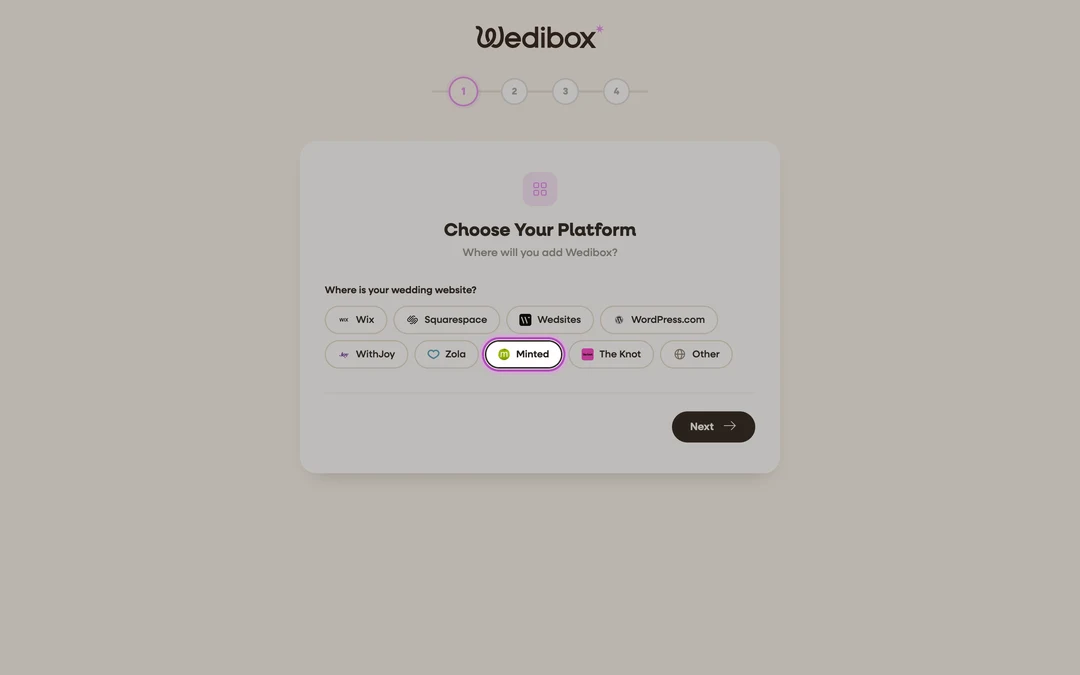
Create your Wedibox photo collection. Go to wedibox.com/w/embed/setup, select Minted as your platform, enter your event name and date, and create your free account. Because Minted can’t host code, Wedibox prepares your shareable link instead of a snippet.
-
Copy your photo page link. On the Add to Your Website step, click Copy. The link looks like
wedibox.com/w/photo-collection/your-names, and a step-by-step walkthrough for Minted appears on the same screen.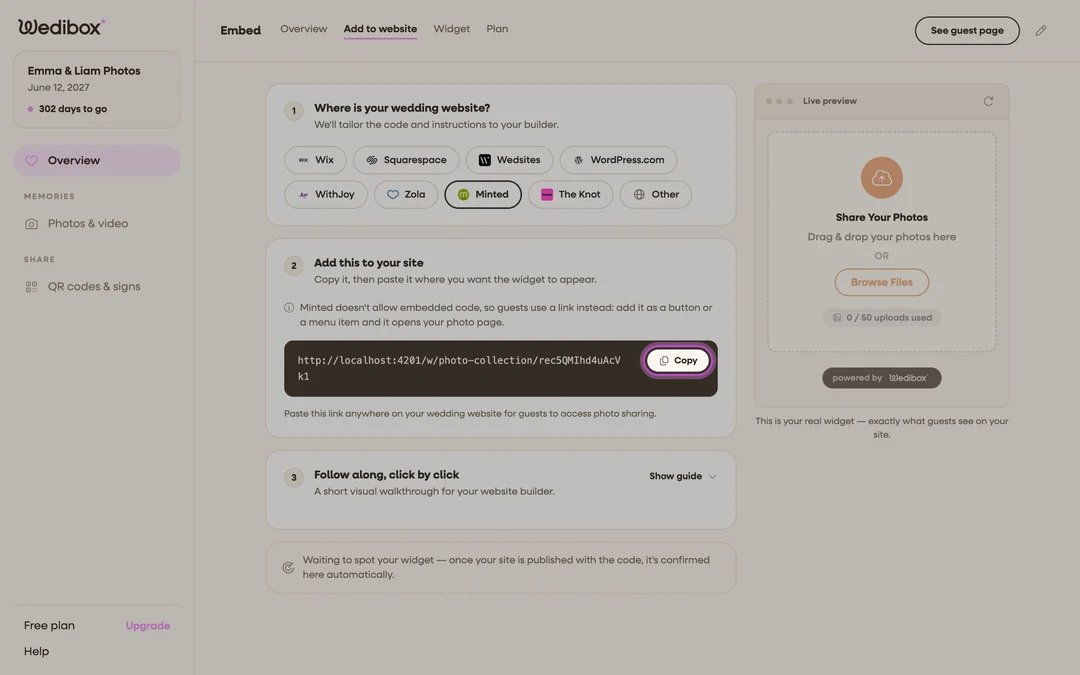
-
Add the link to your Minted site. In the Minted website editor, open a page guests will read (a custom page, your FAQ, or your details section) and paste the link into a text area with a clear label like “Share your photos with us.”
-
Publish and test. Publish your Minted site, tap the link on your phone, and do a test upload from the Share Your Photos button on your photo collection page.


What you should see
The link opens your photo collection page with your names, date, upload button, and gallery. Uploads appear on your embed dashboard as they arrive, and the Active Installations card on the Overview tab notes where your link is being used. For the wedding day, download your QR code with the Download button in the QR card on the Overview tab. At the venue, guests scan far more than they type.
If something goes wrong
- The link isn’t clickable on your Minted page. Some Minted text areas render plain text. Put the full URL on its own line, or move it to a section that supports links.
- Guests see “Uploads are currently closed”. On a paid plan, check your upload window dates in the Event Timeline card on your dashboard’s Overview tab.