How to add Wedibox to a Zola wedding website
Embed widgetEmbed widget
Zola websites don’t let you paste custom code, so you can’t drop the Wedibox widget directly onto the page. Instead, Wedibox gives you a link integration: a clean, shareable link to your photo collection page, where guests upload and browse photos. You add that link to your Zola site, and guests are one tap away from sharing.
Plan: Embed widget · Where: wedibox.com/w/embed/setup → select Zola
Before you start
- Have your Zola website set up and know how to log in to its editor.
- The Free embed plan (up to 50 uploads) is enough to set this up and test it.
Steps
-
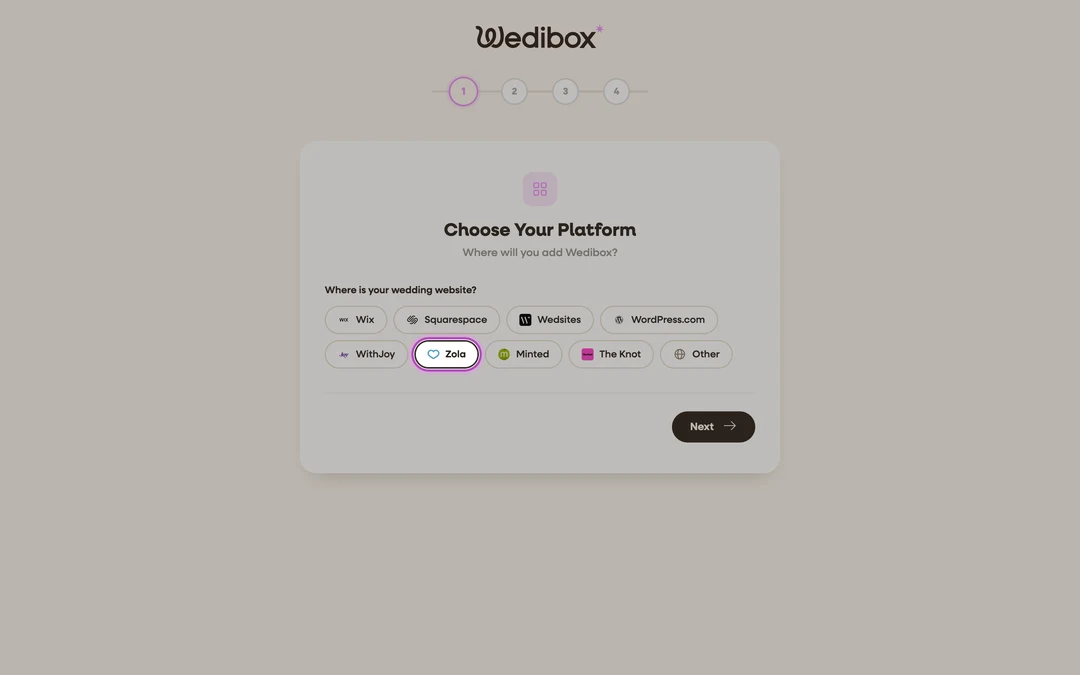
Create your Wedibox photo collection. Go to wedibox.com/w/embed/setup, select Zola as your platform, enter your event name and date, and create your free account. Because Zola can’t host code, Wedibox automatically prepares your shareable link instead of a snippet.
-
Copy your photo page link. On the Add to Your Website step, click Copy next to your link. It looks like
wedibox.com/w/photo-collection/your-names. As the app puts it: “Paste this link anywhere on your wedding website for guests to access photo sharing.” A step-by-step walkthrough for Zola appears on this screen too, and the same link view is always available later on your dashboard’s Add to website tab.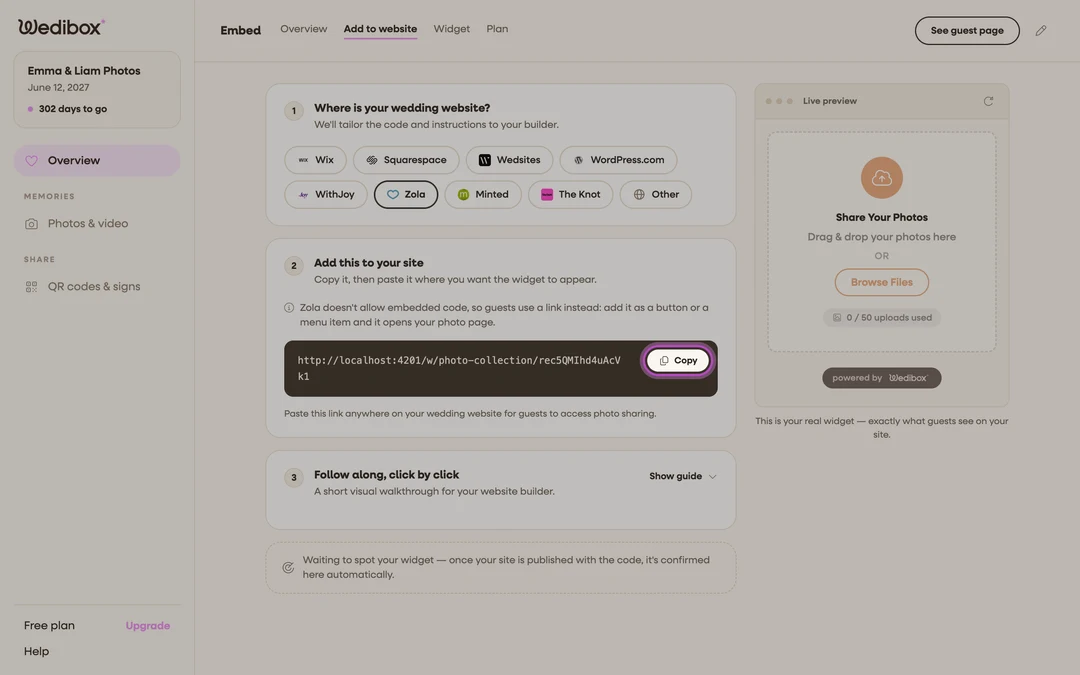
-
Add the link to your Zola site. In your Zola website editor, open the page where you want photo sharing (many couples use their FAQ or a custom page), add a text block or button, and paste the link. Label it something guests will act on, like “Share your photos with us.”
-
Publish and test. Publish your Zola site, then open the link on your phone. Your photo collection page loads with a Share Your Photos button. Do a test upload to make sure everything works end to end.


What you should see
Guests who tap the link land on your photo collection page: your names, your date, an upload button, and the growing gallery. Every upload also appears on your embed dashboard, and the Active Installations card on the Overview tab shows the page your link is used on. For the wedding day itself, most guests will scan a QR code rather than find the link. Grab yours with the Download button in the QR card on the Overview tab.
If something goes wrong
- Guests see “Uploads are currently closed”. On the Free plan uploads are open right away; on a paid plan check your upload window dates in the Event Timeline card on your dashboard’s Overview tab.
- The link is hard for guests to find on Zola. Put it in more than one place (FAQ, schedule, homepage) and lean on the printed QR code at the venue.