How to find your seat
For guestsFor guests
Instead of hunting a poster board for your name, the couple set up a seat lookup: type your name, get your table and seat. It works on your phone in seconds, right from the QR code at the entrance.
Plan: For guests · Where: the seat-lookup QR code or link at the venue, or the Find Your Seat section on the couple’s page
Steps
-
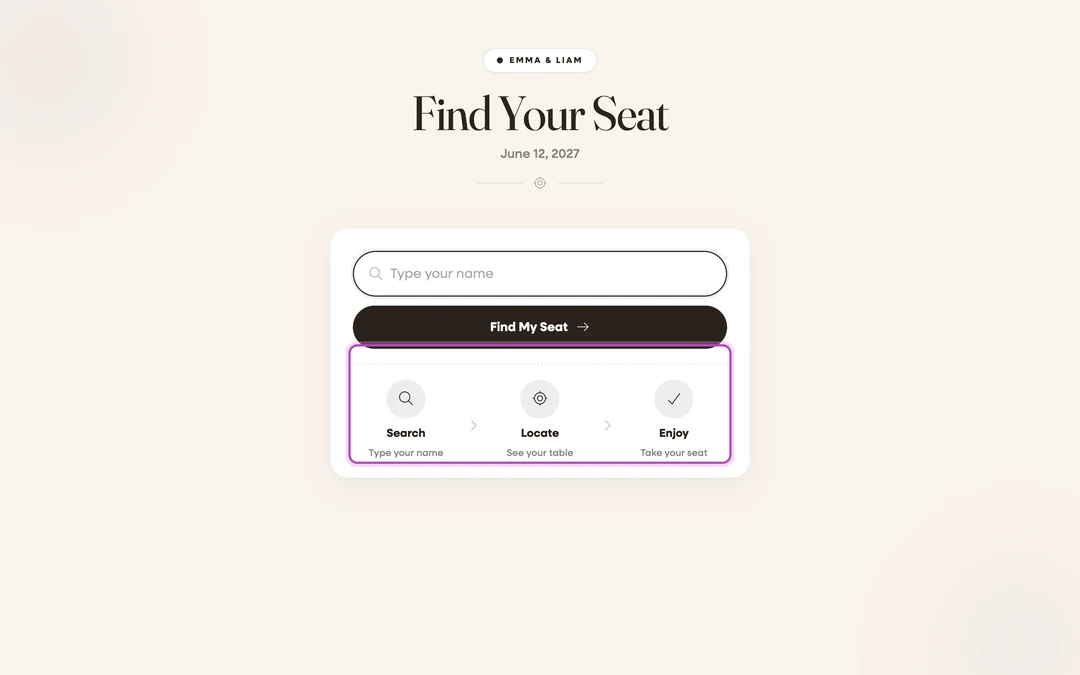
Open the seat lookup. Scan the QR code at the entrance (or tap the couple’s link). The page opens with Find your seat under the couple’s names. The little strip below spells it out: Search, Locate, Enjoy.
-
Type your name. Enter your first or last name in the search box (“Type your name”). First name alone is usually enough.
-
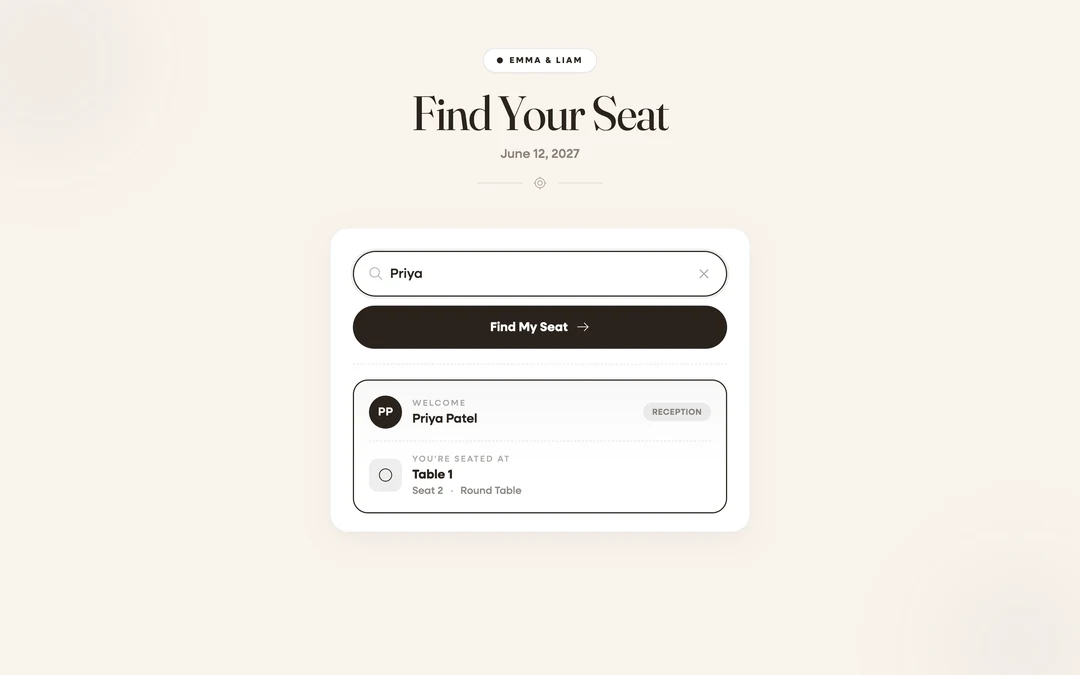
Tap Find My Seat. Your result card appears with a “Welcome” greeting.
-
Read your assignment. The card shows your name, then “You’re seated at” with your table name and Seat number, plus the table shape so you can spot it across the room. If the couple asked for meal choices when you RSVP’d, a Meal line shows what you picked. If the couple has multiple charts (ceremony and reception), the card notes which chart the seat belongs to.


What you should see
Your table and seat, ready before you’ve finished your welcome drink. Helping someone less phone-inclined? Search their name for them. Anyone can look up anyone.
If something goes wrong
- “No seat found”: “We couldn’t find a seat assignment for your search. Please check the spelling or contact the event organizer.” Try your other name (first vs. last) or a shorter version (Beth vs. Elizabeth). If you RSVP’d late, flag a member of the wedding party.
- “Seat lookup isn’t available yet”: the couple hasn’t switched it on. Check the printed chart or ask a host; everything else is still on their wedding page.