How to request a song
For guestsFor guests
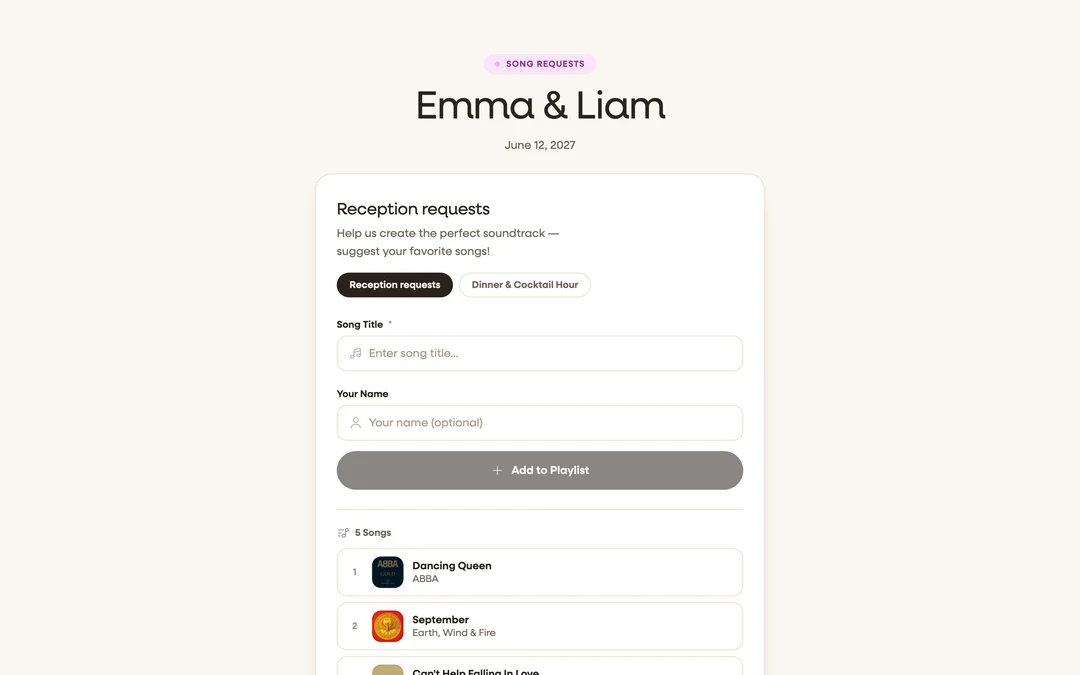
The couple is building their wedding soundtrack from guest requests. You search for a song, tap the right match, and it lands on their shared playlist with your name next to it. The DJ sees exactly who to thank when the floor fills up.
Plan: For guests · Where: the couple’s song-request link or QR code, or the playlist section on their wedding page
Before you start
- Have a song (or three) in mind. Requests are quick, so you can come back for more.
Steps
-
Open the playlist. Tap the couple’s song-request link or scan their songs QR code. The playlist page opens with the couple’s names and the invitation to contribute: “Help us create the perfect soundtrack, suggest your favorite songs!” If they made more than one playlist (ceremony, party), tap the tab you want.
-
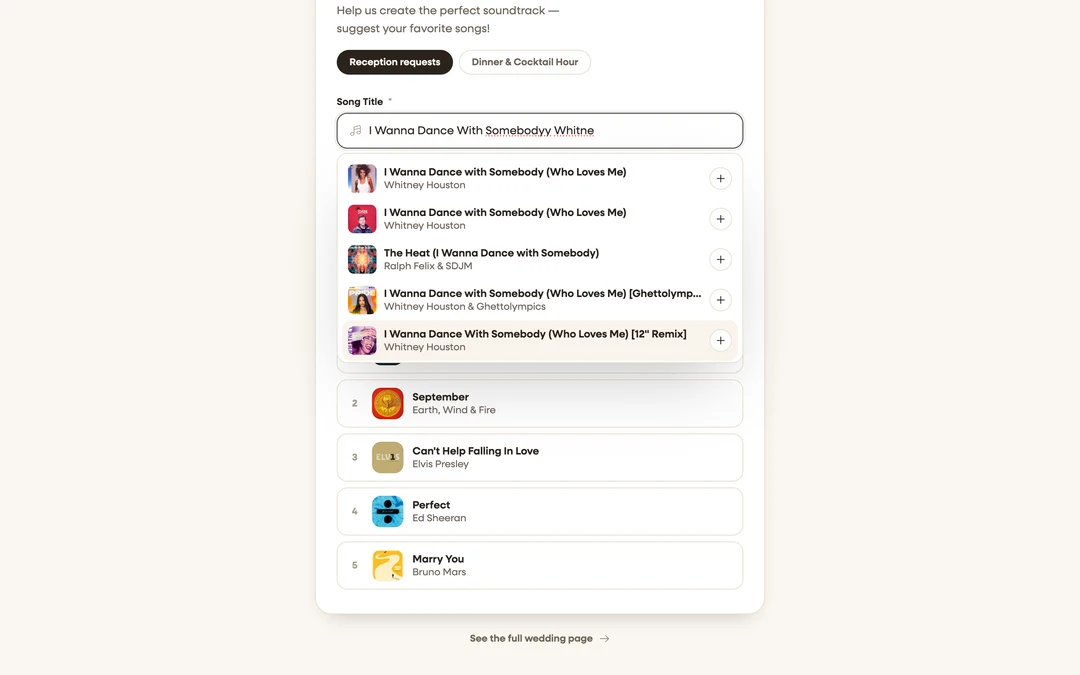
Search your song. Under Song Title, start typing. Matches appear as you type with cover art, title, and artist. Tap the right one so the couple gets the exact version you mean.
-
Add your name. Type it under Your Name (it’s optional, but the couple loves knowing who picked what).
-
Tap Add to Playlist. You’ll see “Song added successfully!” and your song appears in the list below with your initials next to it.

What you should see
Your song sits in the playlist with everyone else’s requests. The count at the top ticks up by one. Got another idea during dinner? Open the same link and add it.
If something goes wrong
- The playlist only shows songs, with no way to add: the couple set this playlist to view-only (“Check out the songs for our special day”). Check the other playlist tabs, or tell them your request in person.
- “Could not add the song. Please try again.”: usually a connection blip on venue wifi. Try again, or switch to mobile data.
- Your song isn’t in the suggestions: finish typing the full title anyway and add it; the search covers a huge catalog, but the couple will still see whatever you type.