How to upload your own photos as the host
Photo sharingAll plans
You don’t have to wait for guests: upload engagement photos, rehearsal-dinner shots, or your photographer’s previews yourself. A gallery that already has a few great photos in it makes guests far more likely to add their own; nobody wants to be first.
Plan: All plans · Where: Photos & video (under “Memories”) → Upload
Before you start
- Pick or create the album the photos belong in first; uploads go to the album you choose in the form.
- On the Free plan your uploads count toward the 50-upload cap, same as guest uploads.
Steps
-
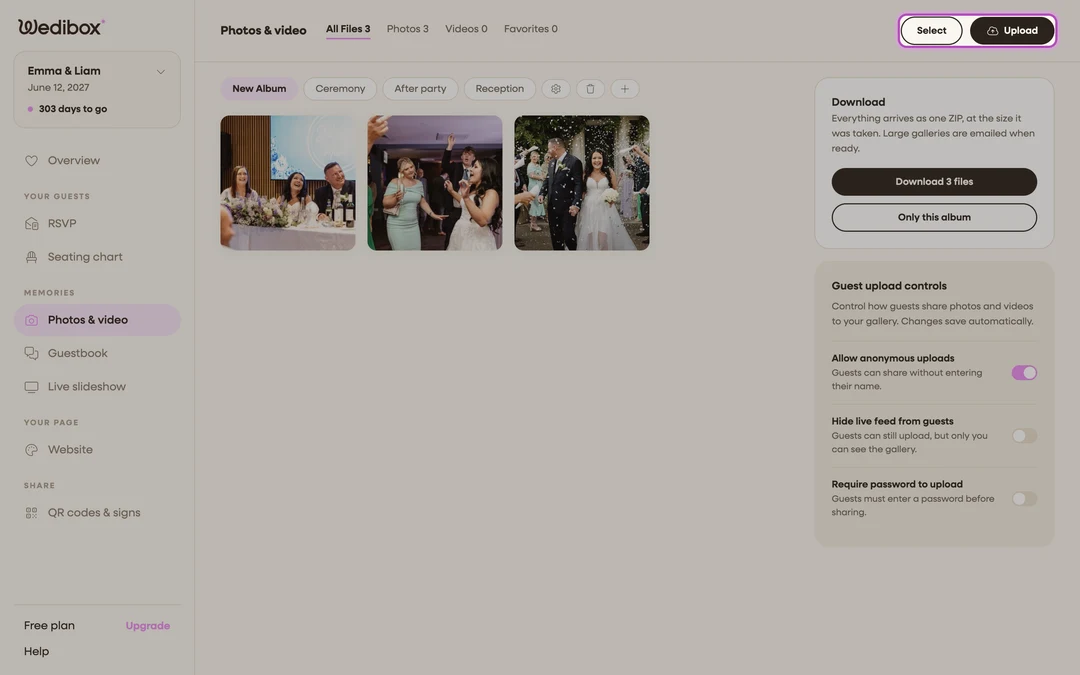
Open Photos & video. In the sidebar, click Photos & video (under “Memories”).
-
Click Upload. It’s the button in the page header. If the album is empty, clicking the big “ADD YOUR FIRST UPLOAD” placeholder opens the same window.
-
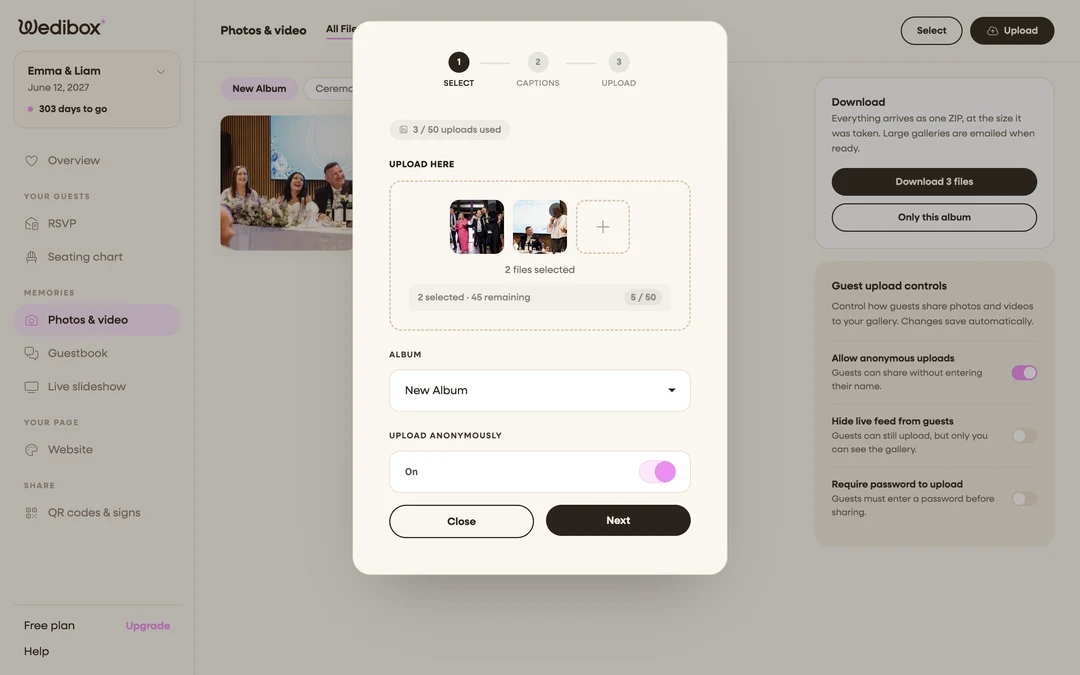
Select your files. Click Click to select files and pick as many as you like in one go; photos and videos together are fine. Each file must be less than 3 GB.
-
Fill in the details. Choose the Album (the dropdown appears once you have more than one), and enter Your Name, or flip Upload Anonymously if you’ve allowed anonymous uploads and don’t want a name shown. The name is what appears next to the photos in the gallery.
-
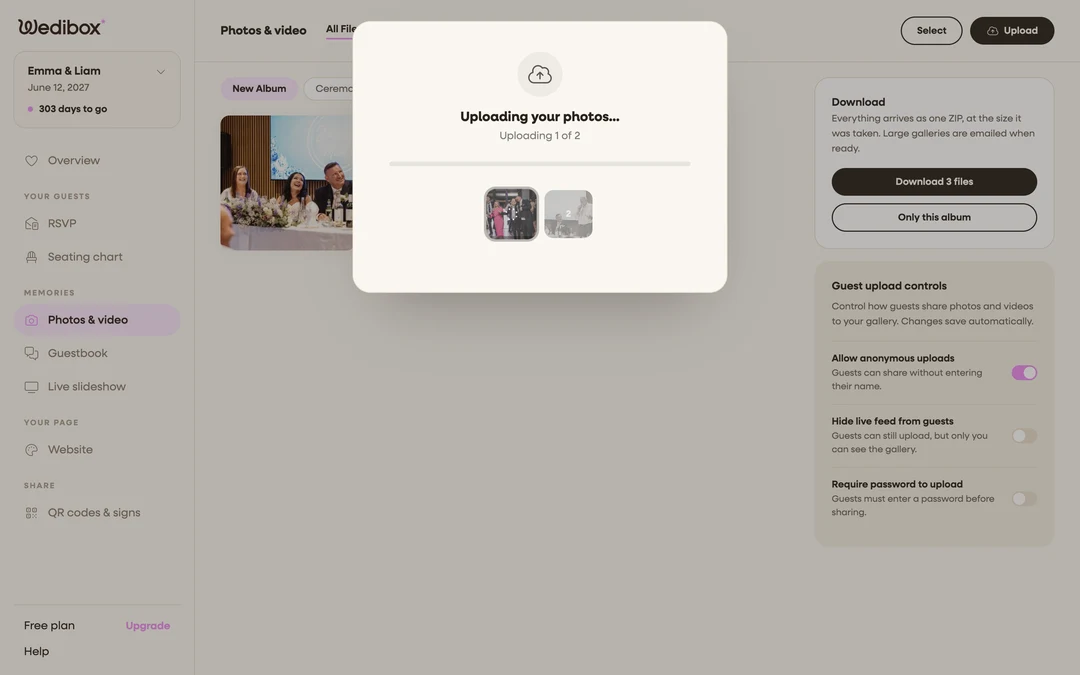
Add captions, then upload. Click Next to reach the captions step (“Add captions to your photos (optional)”), write any you want, then click Upload. A progress bar tracks each file; wait for the “Thank You!” screen and click Done.
-
Check the gallery. Your files appear in the album within a few seconds, marked with the name you entered, exactly as guest uploads do.


What you should see
Your photos sit in the gallery alongside guest uploads: same tiles, same detail view, same download and favorite options. Guests browsing your page see them too (unless the album is hidden or you’ve hidden the live feed).
If something goes wrong
- “Free plan upload limit reached. Please upgrade to continue uploading.” You’ve hit the 50-upload cap. Upgrade to keep adding, or clear test shots you no longer need.
- A video won’t attach. Video uploads require COLLECT VIDEOS to be on, and the file must be MP4 or MOV under 3 GB.