How to manage your partner account settings
For partnersPartner program
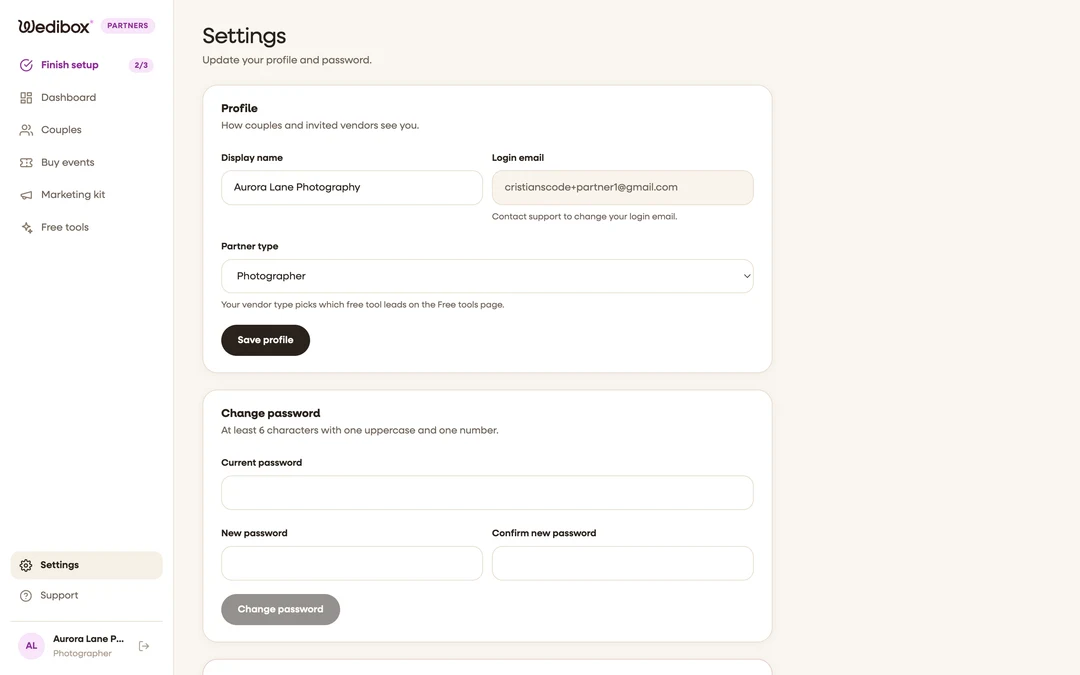
Settings covers your profile and password. Two things people look for here actually live elsewhere: your logo and brand color are in the Marketing kit, and your coupon code was fixed at signup.
Plan: Partner program · Where: Partner portal → Settings
Steps
-
Open Settings. It’s at the bottom of the sidebar, under the five main tabs.
-
Edit your display name. This is how couples and vendors see you: on gift emails, flyers, delivery pages, and the couple’s gallery.
-
Check your partner type. The Partner type select (Venue, Photographer, Wedding planner, DJ, Florist, Other) picks which free tool leads on the Free tools page. Changing it never removes anything; all three tools stay available.
-
Click “Save profile”. A confirmation appears; if you didn’t change anything, Wedibox tells you there was nothing to save.
-
Change your password when needed. Fill in Current password, New password, and Confirm new password (at least 6 characters with one uppercase letter and one number), then click Change password.

What you should see
Your new display name shows up immediately in the sidebar identity chip and on anything you generate afterwards (flyers, emails, delivery pages).
If something goes wrong
- You need to change your login email. The email field is locked; contact hello@wedibox.com and the team will move your account.
- “Couldn’t change your password.” The current password didn’t match; try again, or log out and use the login page if you’ve forgotten it.
- You want to close your account. Email hello@wedibox.com; support pauses your coupon codes and billing while preserving your data, so you can come back later.