How to use promo and discount codes
Plans & billingAll plans
Wedibox discounts come in two forms: codes you type in (from a partner, a referral, or a promotion) and rewards you earn inside the app, which apply themselves automatically at checkout. They stack: multiple discounts combine on one purchase, up to a combined cap of 25%.
Plan: All plans · Where: the Checkout step of activation
Before you start
- Discounts apply to your first plan purchase. They aren’t available on Wedding → All-in-One upgrades, since those already charge only the difference.
- Earned rewards expire. The app shows how many days each one has left, so use them while they’re fresh.
Steps
-
Start activating your event. Follow How to activate your event until you reach the Checkout step.
-
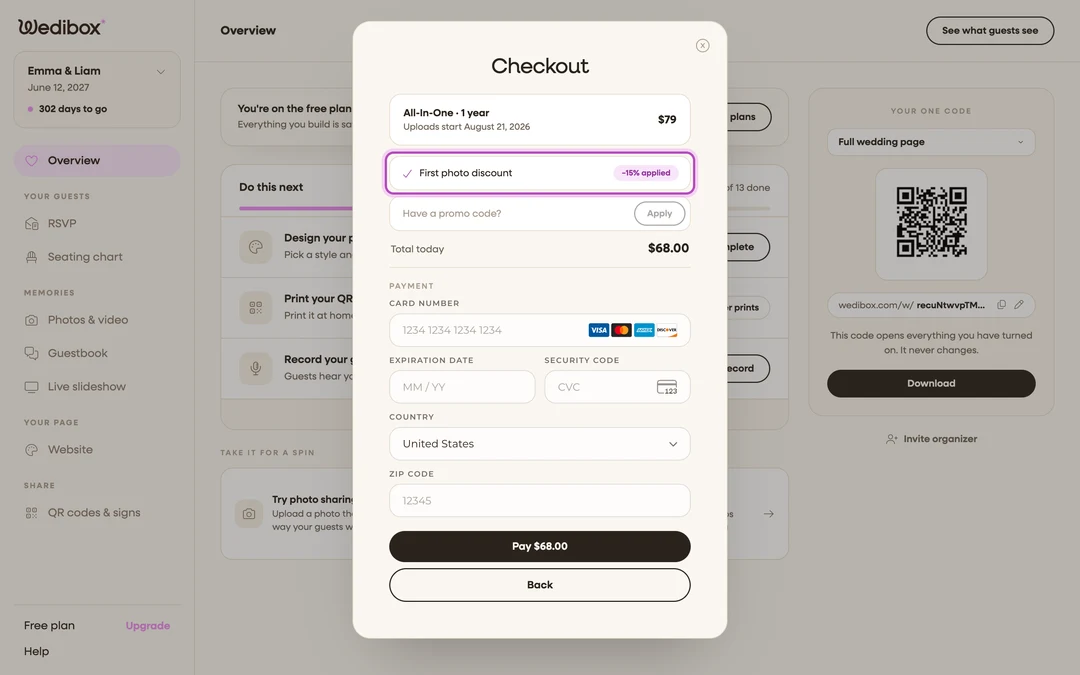
Check your automatic discounts. Any rewards you’ve earned are already applied and listed above the total, for example Feedback discount or First photo discount, each with a ”−{X}% applied” chip. There’s nothing to type for these.
-
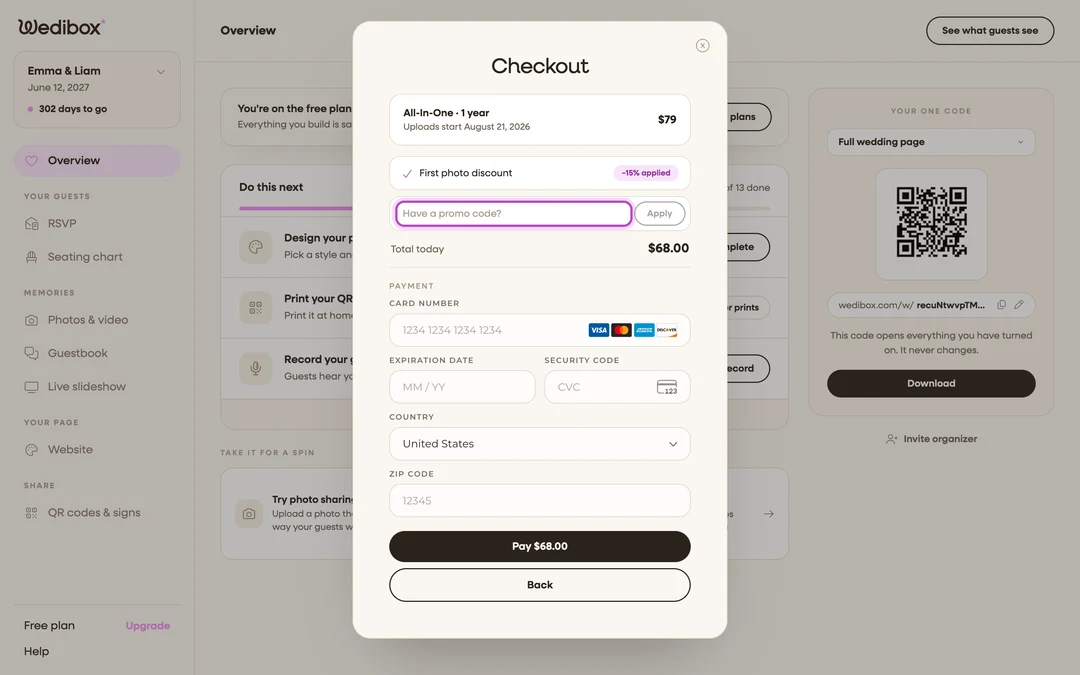
Enter a code if you have one. Click the Have a code? link under the card form, type the code into the field that opens, and click Apply. The discount appears as a chip, and Total today updates immediately. Made a mistake? Remove the code with the small × next to it. If you arrived from a link that carries a code, the field opens and applies it by itself.
-
Pay the discounted total. The Pay button always shows the final amount: what you see is what’s charged. If your combined discounts exceed the cap, the line “Combined discounts capped at 25%” tells you so.
How to earn the automatic discounts
- First photo (15% off). From Your events, use the TRY IT NOW card: scan your own QR code and upload a test photo. The celebration screen (“Your first memory is live!”) reveals a 15% code, valid for 14 days. It’s saved to your account and auto-applies at checkout.
- Feedback (20% off). Answer the three-question feedback survey when it appears and you’ll get a 20% code for your first purchase.
- Referral (20% off). Friends who sign up through your referral link get 20% off their event. See How the referral program works.
Your active rewards are always visible on the Your events page: a banner reads “You have a discount ready to use,” expands to show each code and its expiry, and Use now takes you straight to checkout.

If something goes wrong
- “Invalid code.” Check the code for typos and try typing it exactly as it was given to you. If it came from a friend, make sure it’s their current code.
- “Could not validate code. Try again.” A connection hiccup; click Apply once more.
- The discount is smaller than the sum of your codes: that’s the 25% combined cap working as intended.