How to reorder, show, and hide sections
Wedding websiteAll plans
Your page doesn’t have to show everything all the time. Hide the registry until after the RSVPs, keep a surprise schedule item invisible, reorder your love story; nothing you hide is deleted, so you can stage-manage the page right up to the wedding day.
Plan: All plans · Where: Website editor → What is on your page
Before you start
- Know the difference: hiding keeps all content saved and takes it off the guest page; deleting (the trash icon inside editors) actually removes it.
Steps
-
Open the Website editor. In the sidebar, click Website (under “Your page”).
-
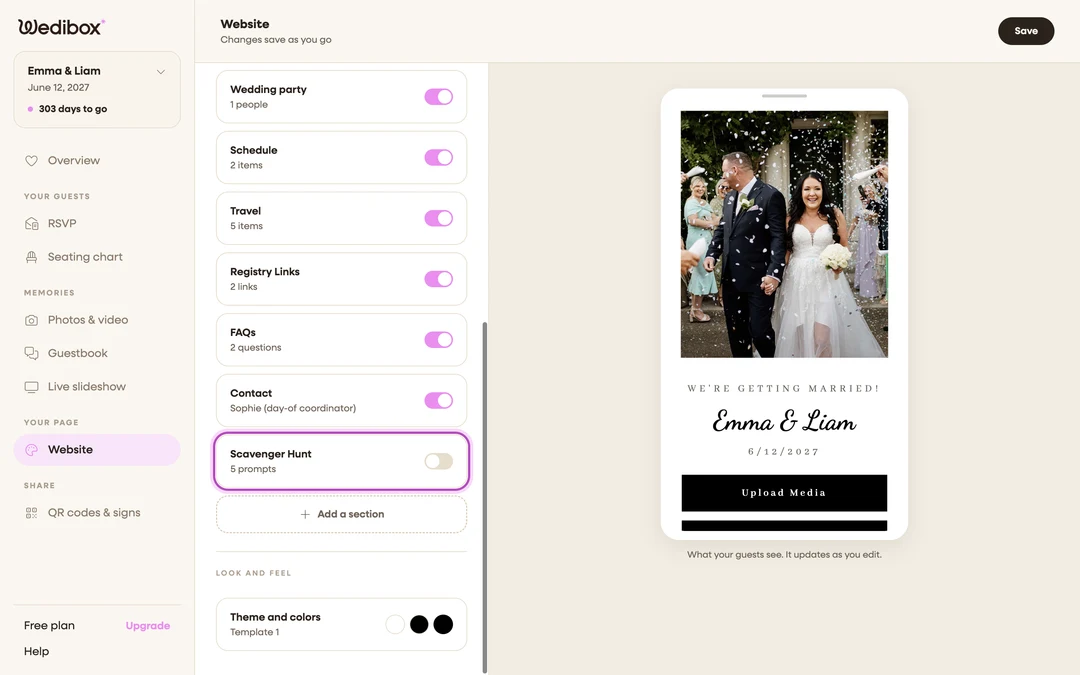
Toggle whole sections with the card switches. Under What is on your page, every card except Header section has a switch. Off means guests don’t see the section; your content waits, saved, for the switch to come back on.
-
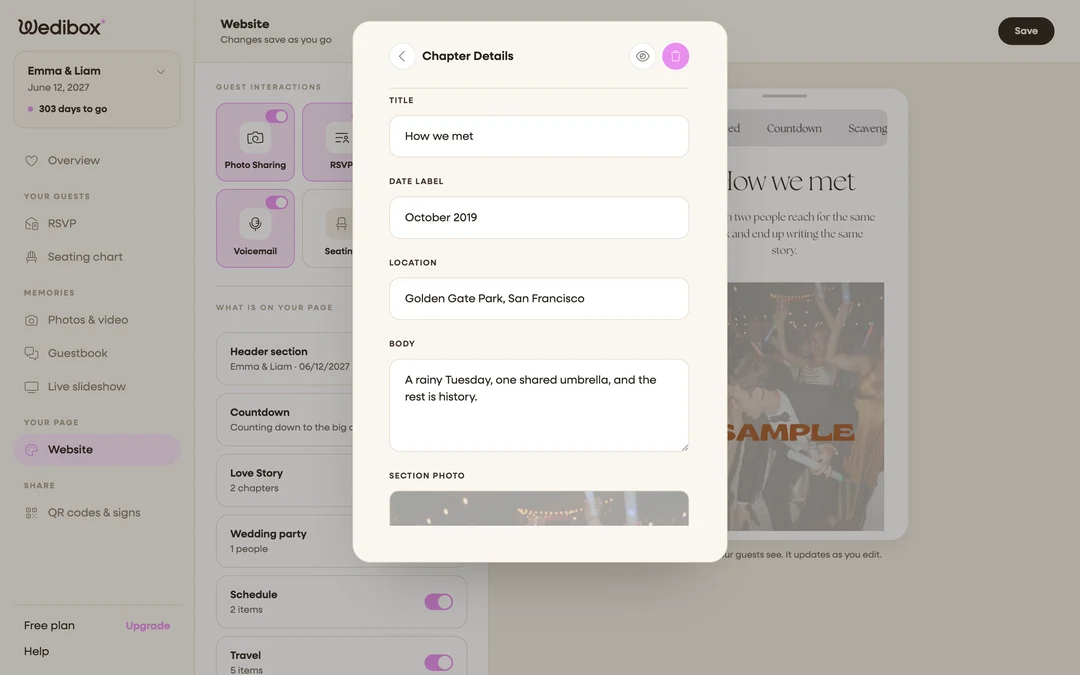
Or hide from inside an editor. Every section editor has an eye icon in its top bar; it does the same as the card switch, handy while you’re mid-edit.
-
Hide single items with their eye icon. Open a section, then an item (a chapter, hotel, question, or party member) and click the eye in its top bar. The list marks it with a “Hidden” badge; guests never see it, and one click restores it.
-
Reorder items with the arrows. Inside an item’s panel, the up and down arrows move it through its section’s list; that list order is exactly the order guests see. On mobile, tap the arrows button beside the list label to enter sort mode first.
-
Control the photo feed separately. The photo gallery isn’t in the section list ; its switch lives on the Photo Sharing tile, and turning it off hides guest uploads from the page (the Overview then reports “Uploads are hidden”).
-
Know what’s fixed. Sections themselves sit in a set order on the page; photo feed and scavenger hunt up top, then countdown, wedding party, love story, schedule, travel, seating, FAQs, registry, and contact toward the end. You choose what shows; the page keeps the layout tidy. Items inside each section reorder freely.
What you should see
Toggled-off cards stay in your editor list with their content intact, hidden items keep their “Hidden” badges, and the live page shows exactly the sections and items you left on; in a clean, consistent order.
If something goes wrong
- You toggled a section off and worry the content is gone. It isn’t. Flip the card’s switch back on; everything returns exactly as you left it.
- A section is on but guests still don’t see it. Plan gating, not visibility: some sections show to guests only on certain plans. See which sections come with which plan.