How to upgrade your plan
Plans & billingAll plans
Plans move in one direction: Free → Wedding → All-in-One. There are no downgrades, so you can upgrade with confidence: you only ever gain features, and everything you’ve built stays exactly as it is. Upgrading from Wedding to All-in-One costs just the difference between the two plans, not the full price again.
Plan: All plans · Where: event menu (click your event’s name in the sidebar) → Plan and billing
Before you start
- Compare what each step up unlocks in Wedibox plans compared.
- Upgrading from Free is the same flow as activating. You’ll also choose your activation date. See How to activate your event.
- Promo and discount codes apply to first purchases, not to Wedding → All-in-One upgrades: you’re already only paying the difference.
Steps
-
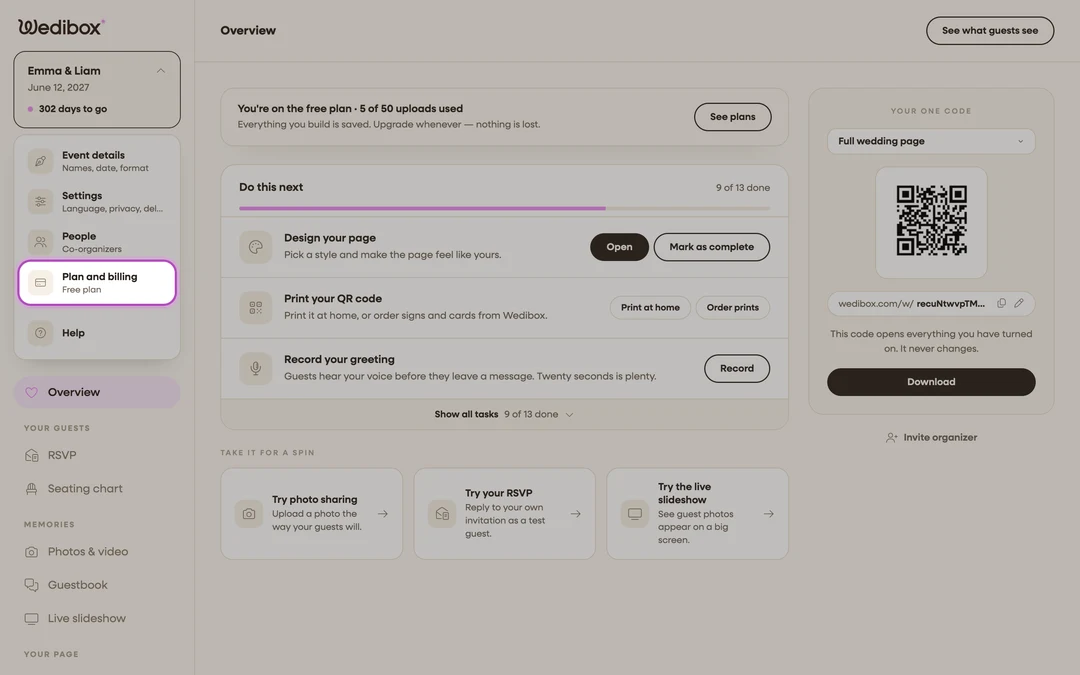
Open the plan picker. Click your event’s name at the top of the sidebar and choose Plan and billing. The plan ladder opens; your current plan is marked Current plan, and anything below it is grayed out: that’s the no-downgrade rule made visible.
-
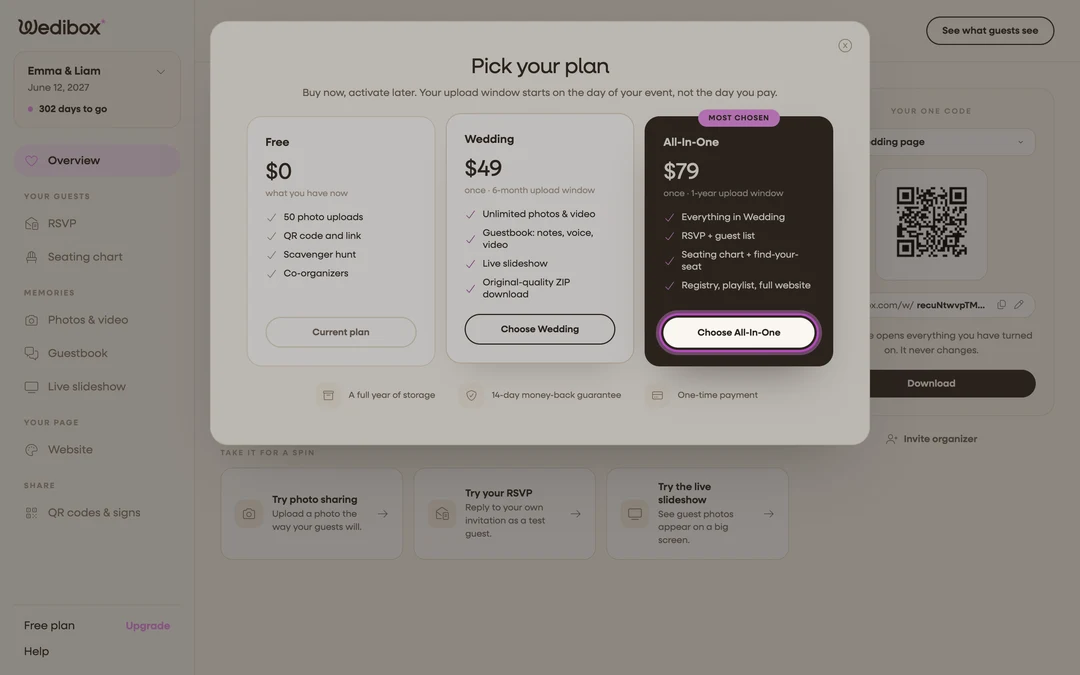
Choose the higher plan. Click Choose All-In-One (or, from Free, Choose Wedding or Choose All-In-One).
-
From Free: pick your timing and date. You’ll choose Activate Now or Schedule for Later, exactly as in How to activate your event. From Wedding, you skip straight to checkout. Your dates are already set.
-
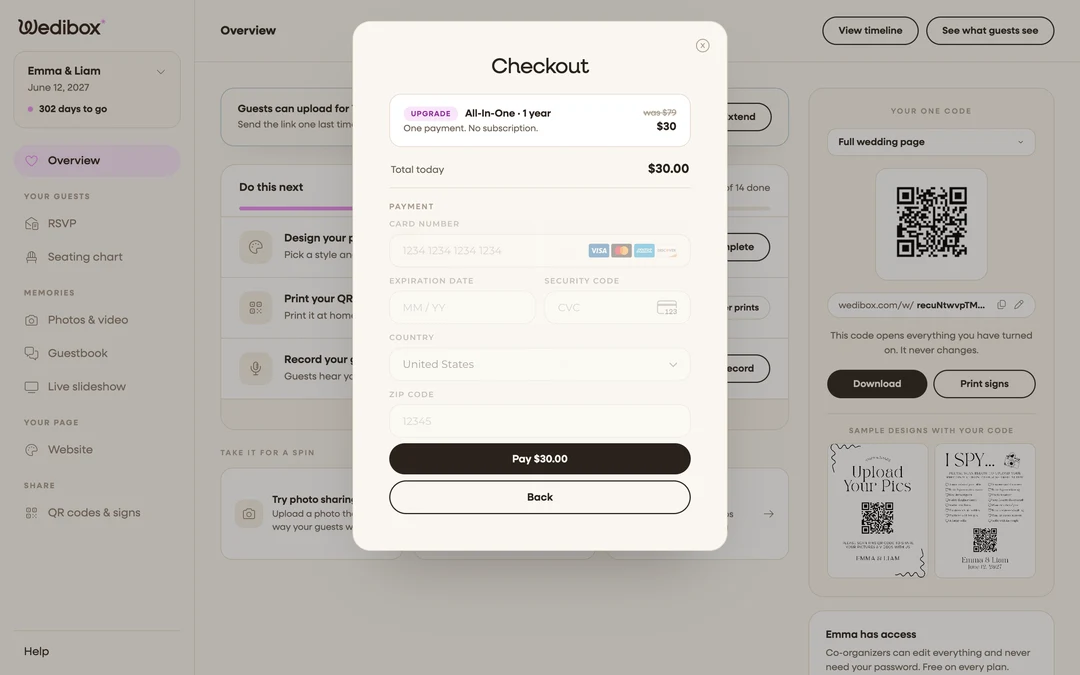
Review the upgrade price. The checkout summary is labeled Upgrade and shows the full price struck through next to what you actually pay: the difference (for example, Wedding $49 → All-in-One $79 charges $30).
-
Pay. Enter your card details in the secure Stripe form and click Pay.
What you should see
All-in-One features unlock immediately: the RSVP hub starts accepting replies, the seating chart and guest seat lookup go live, and the plan-gated website sections (Love Story, Schedule, Travel, FAQs, Registry, Contact, Wedding Party) open in the website editor. The event menu now reads All-in-One plan, and any “needs a plan upgrade” notices disappear. Your upload window and storage dates stay the same as before the upgrade. If you need more time, you can extend them separately.
If something goes wrong
- A section still shows as locked after upgrading: refresh the page; the editor re-checks your plan on load.
- You want to “downgrade”: that isn’t possible on Wedibox; plans only move up. If you upgraded by mistake within 14 days and haven’t started using the new features, ask support about the money-back guarantee.