How to add an FAQ section
Wedding websiteAll-in-One plan
Every wedding generates the same ten questions: dress code, parking, kids, plus-ones, weather plans. An FAQ section answers them once, on the page guests already have open, and quietly saves you a hundred texts in the final month.
Plan: All-in-One plan · Where: Website editor → What is on your page → FAQs
Before you start
- You can build this section on any plan; it appears to guests once your event is on the All-in-One plan.
- Steal from experience: whatever guests have already asked you twice belongs here.
Steps
-
Open the Website editor. In the sidebar, click Website (under “Your page”).
-
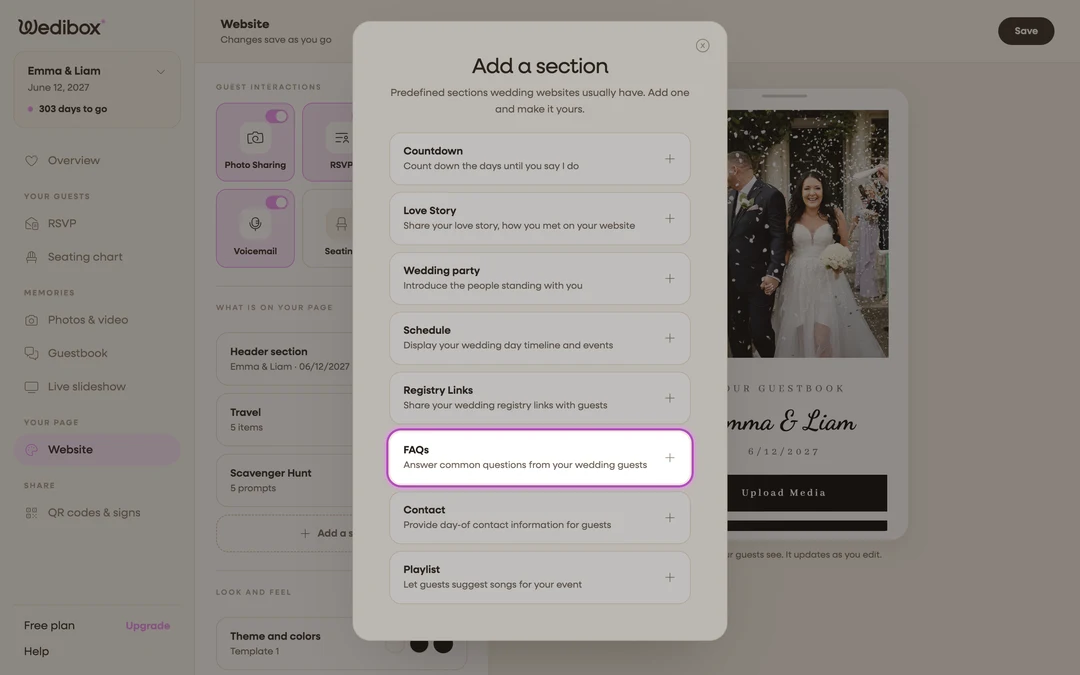
Add the section. Click Add a section and choose FAQs (“Answer common questions from your wedding guests”); or click its card if it’s already listed.
-
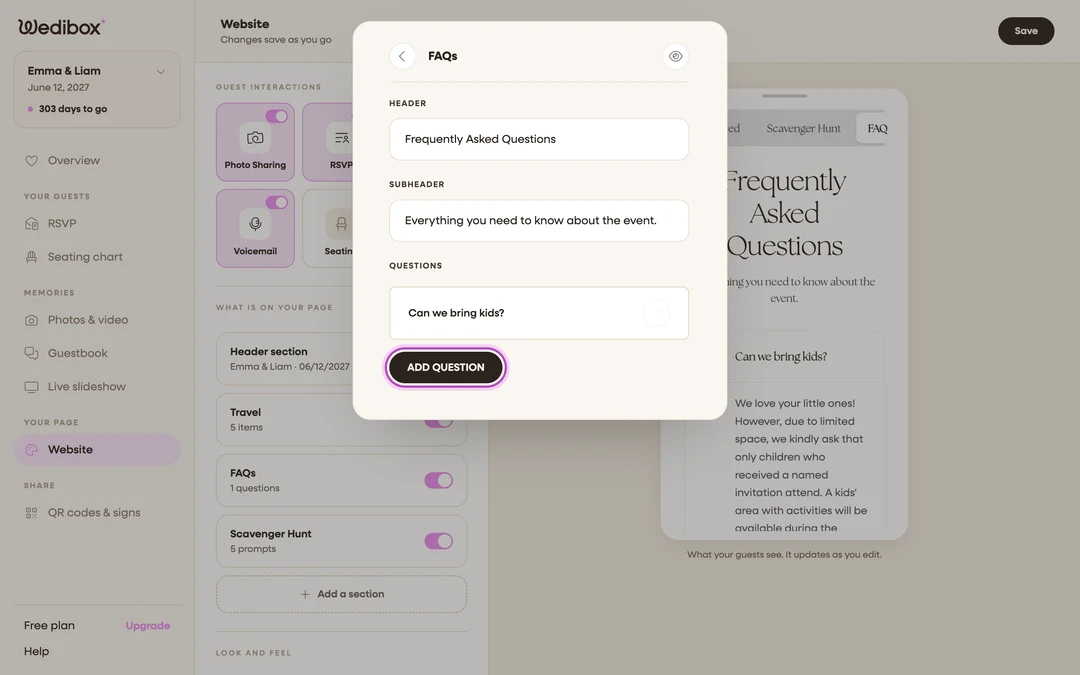
Title the section. HEADER starts as “Good to know”; add a SUBHEADER if you want one.
-
Add a question. Under QUESTIONS, click ADD QUESTION. The Question Details panel opens.
-
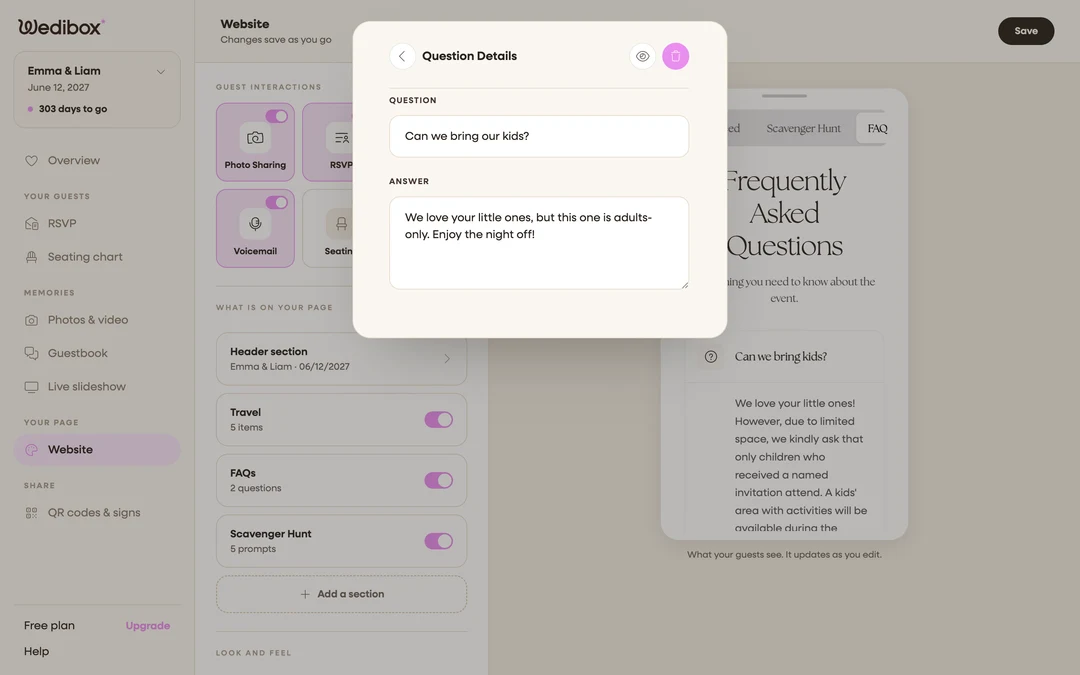
Write the pair. Put the question guests would type in QUESTION (“Can I bring my kids?”) and your answer in ANSWER. Answer plainly and kindly; one or two sentences beats a policy paragraph.
-
Cover the classics. Add the rest the same way: dress code, parking and ride-shares, plus-ones, kids, gifts, weather plan, photos during the ceremony. Five to eight questions covers most weddings.
-
Arrange and prune. Inside a question, the arrows move it up or down the list, the eye icon hides it without deleting it, and the trash icon removes it after a confirmation. Close the editor to save.
What you should see
The card’s status line shows your question count, and the preview lists your questions in order with answers beneath. From now on, “check the website” is a complete reply to almost anything.
If something goes wrong
- A question shows a “Hidden” badge. It’s saved but invisible to guests. Open it and click the eye icon to show it again.
- The section is on but guests don’t see it; FAQs display to guests on the All-in-One plan; see which sections come with which plan.