How to add your wedding schedule
Wedding websiteAll-in-One plan
A schedule on your page answers the question every guest asks twice: “what time does it start, and where?” List the day as timeline items; ceremony, cocktail hour, reception ; and guests stop texting you for logistics the week of the wedding.
Plan: All-in-One plan · Where: Website editor → What is on your page → Schedule
Before you start
- You can build this section on any plan; it appears to guests once your event is on the All-in-One plan.
- Rough times are fine to start; edits go live instantly, so you can firm things up as vendors confirm.
Steps
-
Open the Website editor. In the sidebar, click Website (under “Your page”).
-
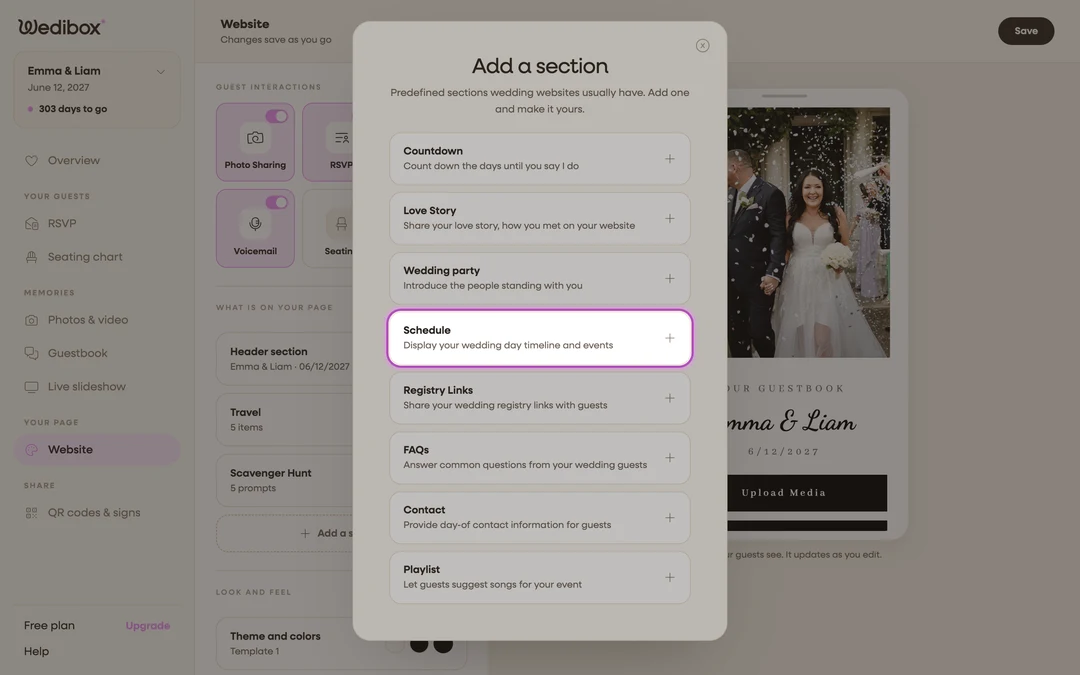
Add the section. Click Add a section and choose Schedule (“Display your wedding day timeline and events”); or click its card if it’s already listed.
-
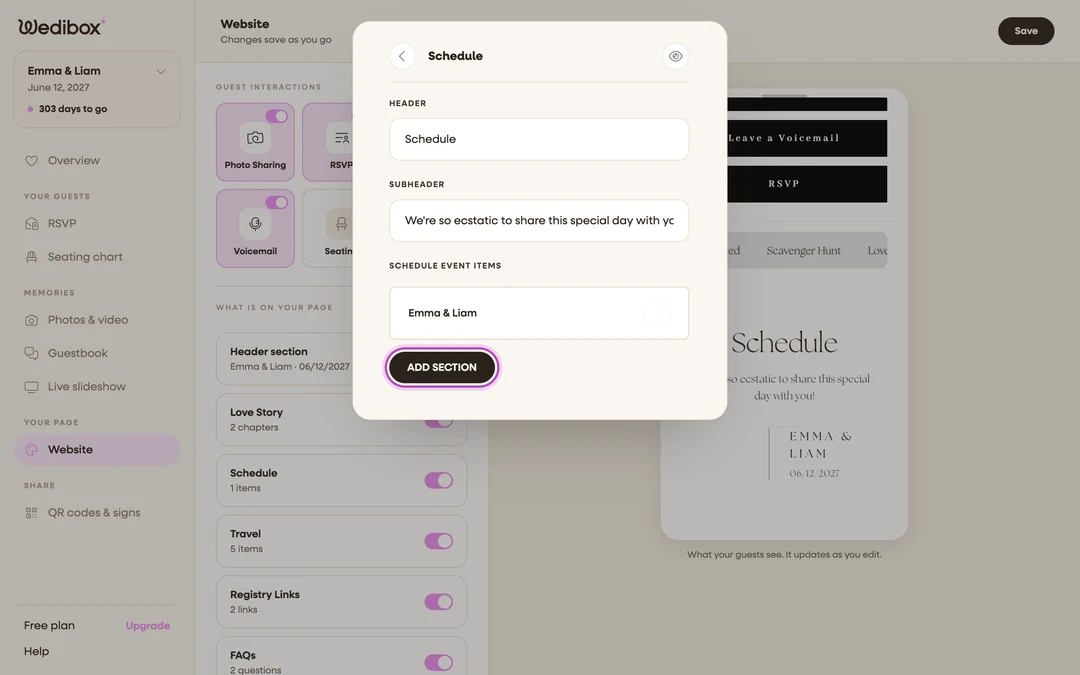
Title the section. HEADER starts as “The day”; add a SUBHEADER if you want a line under it (“Saturday, June 14”).
-
Add your first item. Under SCHEDULE EVENT ITEMS, click ADD SECTION. The Schedule Item Details panel opens.
-
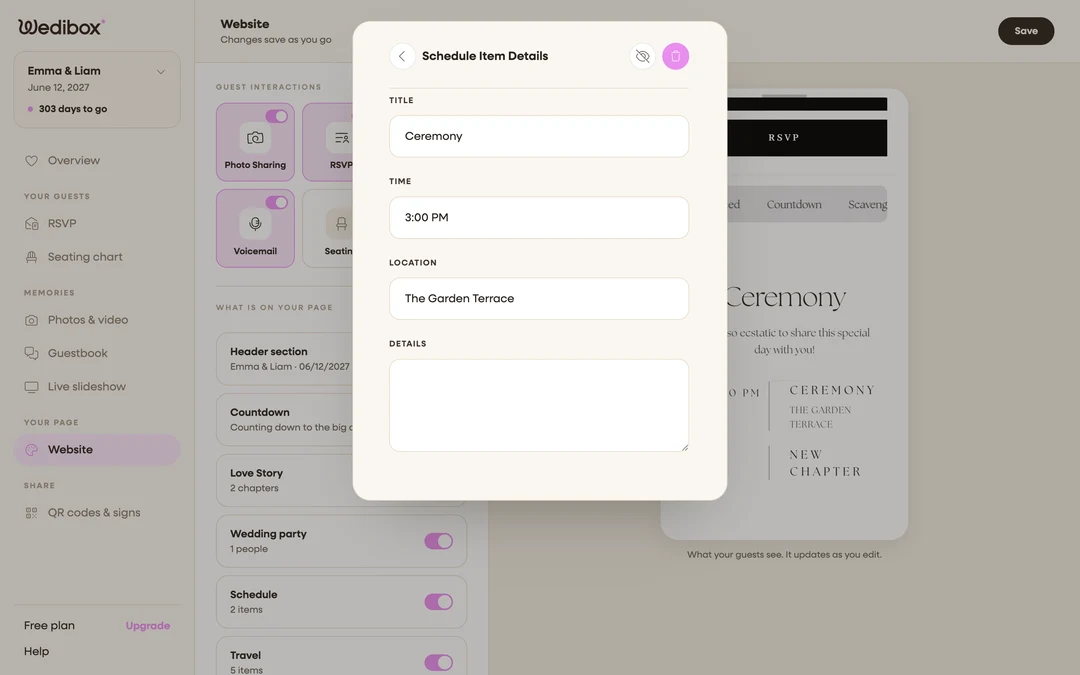
Fill in the item. TITLE (“Ceremony”), TIME (free text; “4:00 PM”), LOCATION (“Rose Garden, north lawn”), and DETAILS for anything guests should know (“unplugged ceremony; cameras away until the kiss”).
-
Add the rest of the day. One item per moment guests need to show up for: ceremony, cocktail hour, dinner, first dance, last call.
-
Arrange and trim. Inside an item, the up and down arrows reorder it in the timeline, the eye icon hides it (handy for a surprise), and the trash icon deletes it after a confirmation.
-
Close the editor to save. The card’s status line shows your item count.
What you should see
The preview shows a clean top-to-bottom timeline with times beside each moment. Guests scrolling on their phones the morning of the wedding find everything in one glance.
If something goes wrong
- The order looks wrong. Items render in list order, not by reading the time field. Open an item and use the arrows to put the day in sequence.
- The section is on but guests don’t see it; Schedule displays to guests on the All-in-One plan; see which sections come with which plan.