How to add your Love Story
Wedding websiteAll-in-One plan
The Love Story section tells your story in chapters (how you met, the first date, the proposal), each with its own photo, date, and place. It’s the section guests actually scroll for, and it makes your page feel like you rather than a form.
Plan: All-in-One plan · Where: Website editor → What is on your page → Love Story
Before you start
- You can build this section on any plan; it appears to guests once your event is on the All-in-One plan.
- Gather a photo per chapter if you can; chapters read far better with one. Three to five chapters is the sweet spot.
Steps
-
Open the Website editor. In the sidebar, click Website (under “Your page”).
-
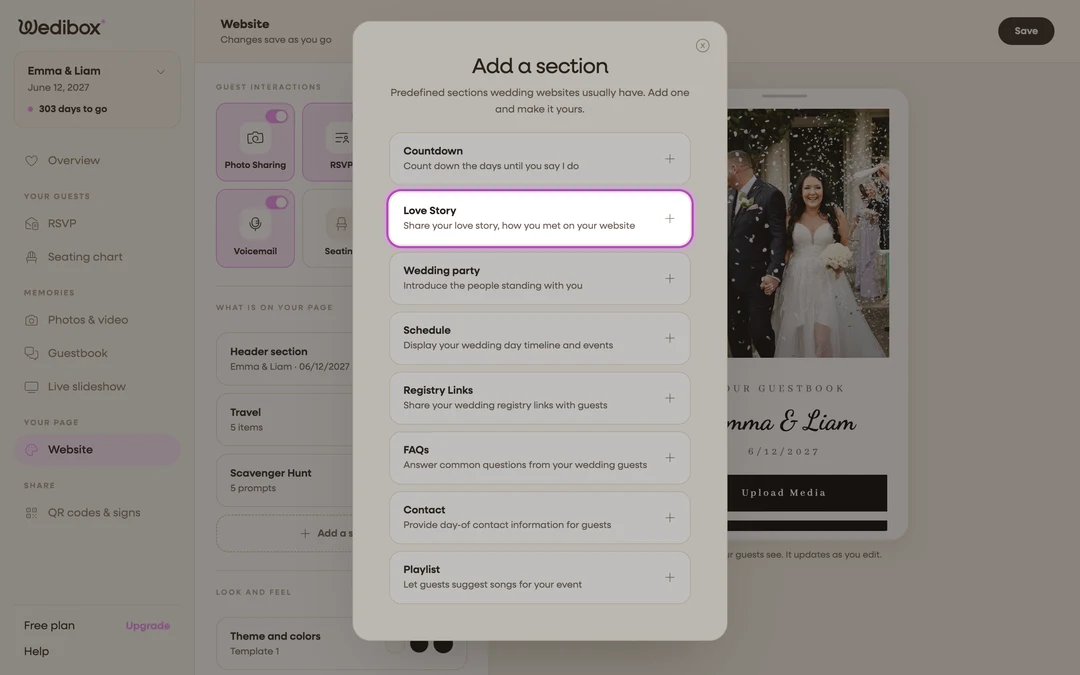
Add the section. Click Add a section and choose Love Story (“Share your love story, how you met on your website”). Its editor opens; if the section is already on your page, just click its card.
-
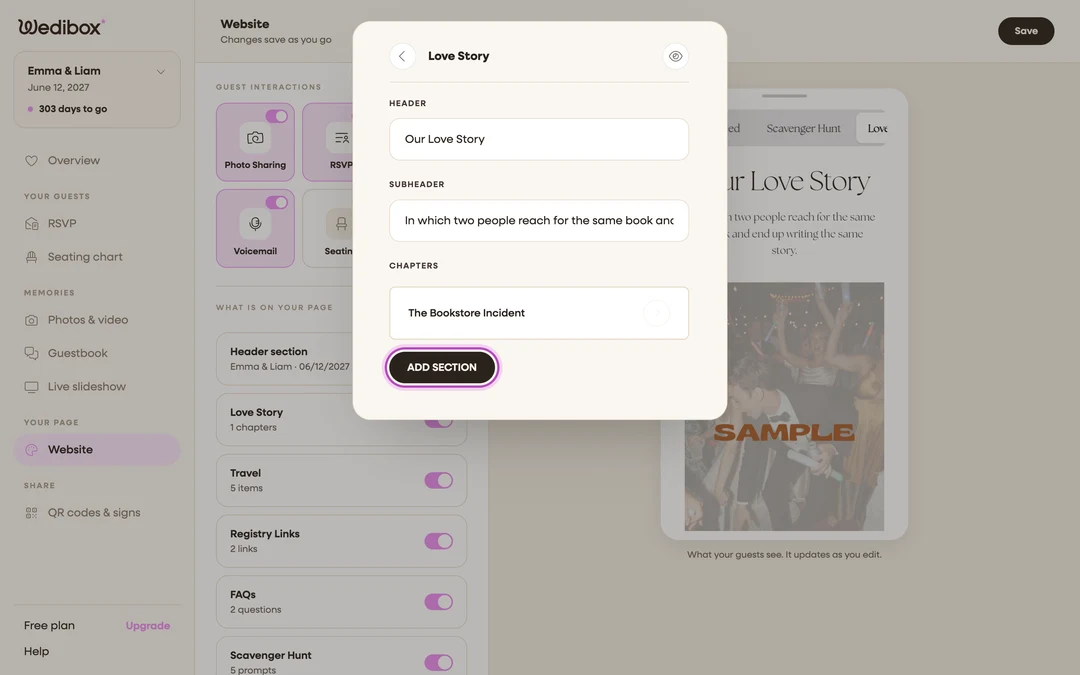
Title the section. Fill HEADER (it starts as “Our story”) and an optional SUBHEADER line beneath it.
-
Add a chapter. Under CHAPTERS, click ADD SECTION. The Chapter Details panel opens.
-
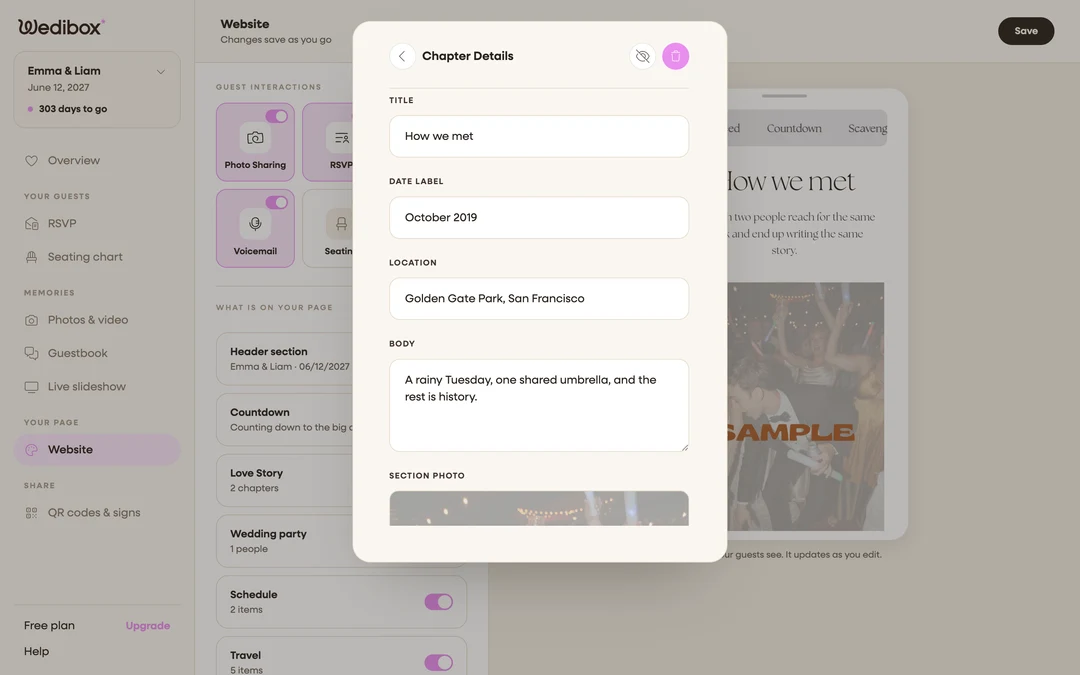
Write the chapter. Give it a TITLE (“How we met”), a DATE LABEL (free text; “Summer 2019” works), a LOCATION, and the story itself in BODY. Keep each chapter to a paragraph; guests are skimming happily, not reading a novel.
-
Add the chapter photo. Click SECTION PHOTO and pick an image. It displays alongside that chapter on your page.
-
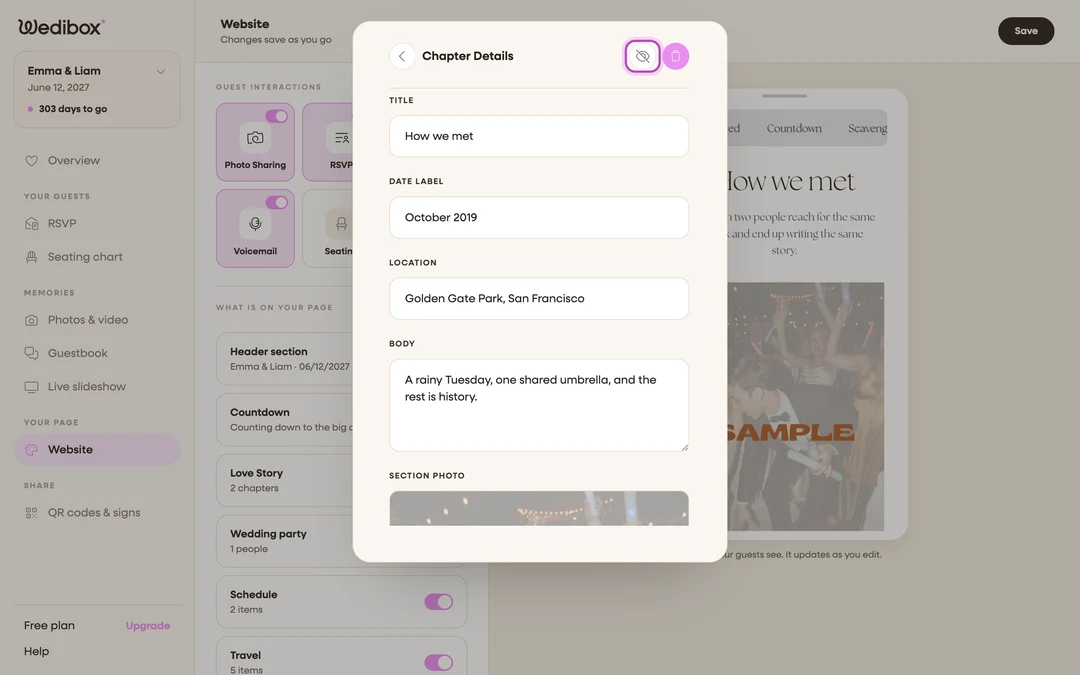
Repeat, then arrange. Add your other chapters the same way. Inside a chapter, the up and down arrows at the top move it through the timeline, the eye icon hides just that chapter (a “Hidden” badge appears in the list), and the trash icon deletes it after a confirmation.
-
Close the editor to save. Back on the list, the card’s status line shows your chapter count.
What you should see
The card under What is on your page reads “3 chapters” (or however many), and the preview shows your chapters in order, photos beside your words. Hidden chapters stay saved but never render for guests.
If something goes wrong
- A chapter shows a “Hidden” badge you didn’t intend. Open the chapter and click the eye icon to make it visible again.
- The section is on but guests don’t see it; Love Story displays to guests on the All-in-One plan; see which sections come with which plan.