A wedding website is one link that holds every detail of your day. What to put on a wedding website comes down to a short list: your names and the date, the place and the start time, a schedule, travel and hotels, how to RSVP, the dress code, registry links, and one person to reach on the day. Everything else is optional. This guide covers what to include on a wedding website, what to leave off, who can see it, and when each part should be ready.
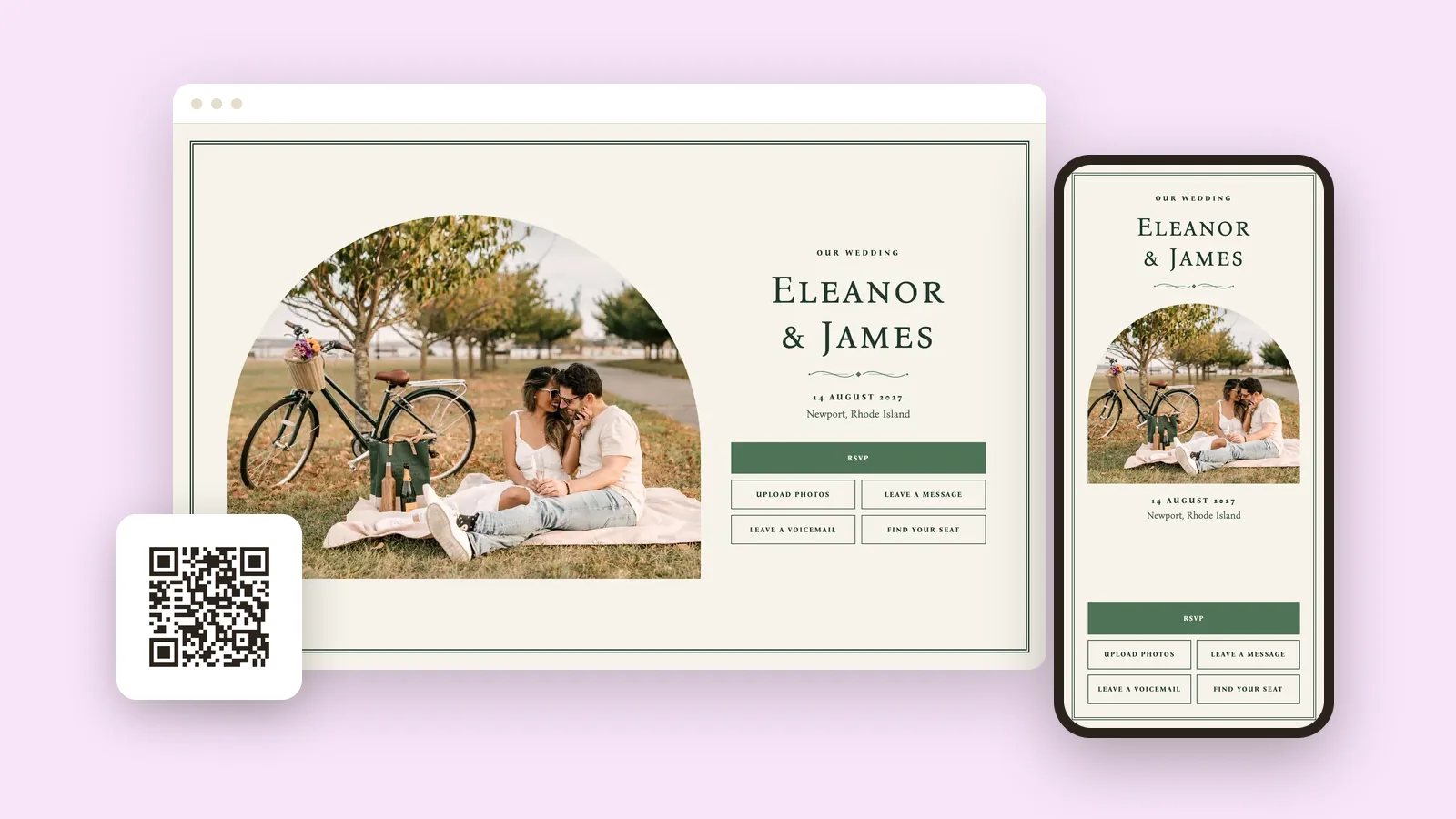
The list works on any builder. The screens below are real pages from Wedibox, where you can make a free wedding website with a QR code. Wedibox has hosted more than 100,000 weddings, and guests ask the same things every time: what time, where, what to wear, and where to park. Answer those first.
What to include on a wedding website: the essentials
Eight things belong on every wedding website. A guest who reads only these can get dressed, get there, and reply on time. Each one comes with a line of sample wording.
Your names, the date, and the place
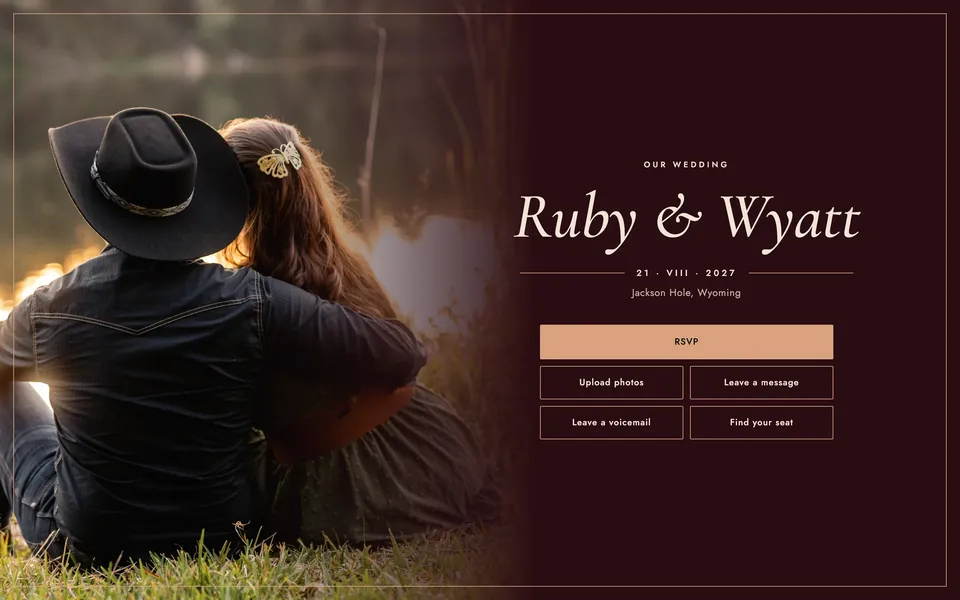
This is the top of the page, and guests check it first. Put both names, the full date with the day of the week, and the city. Add the venue name if the whole day is in one spot. The cover sets the look for every page under it, so browse the wedding website templates before you pick one.
Example: "Ruby and Wyatt. Saturday, August 21, 2027. Jackson Hole, Wyoming."
The schedule, with start times
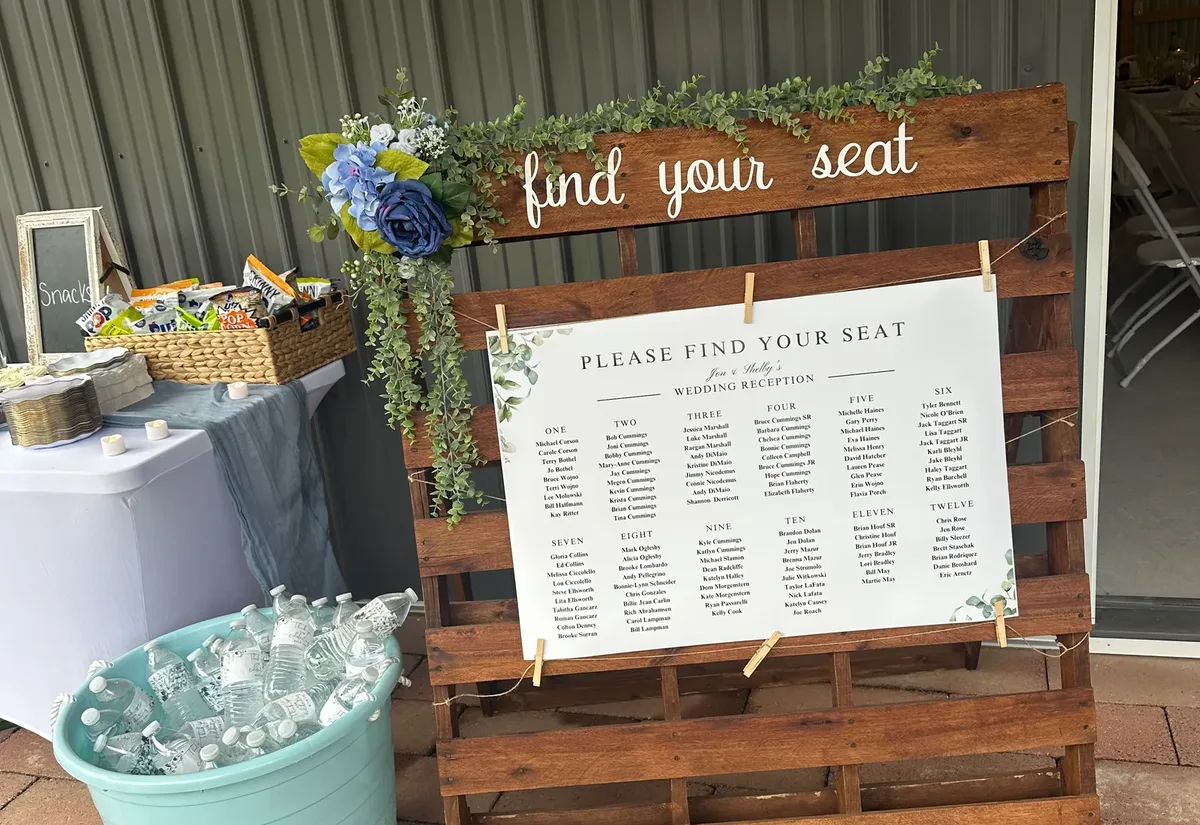
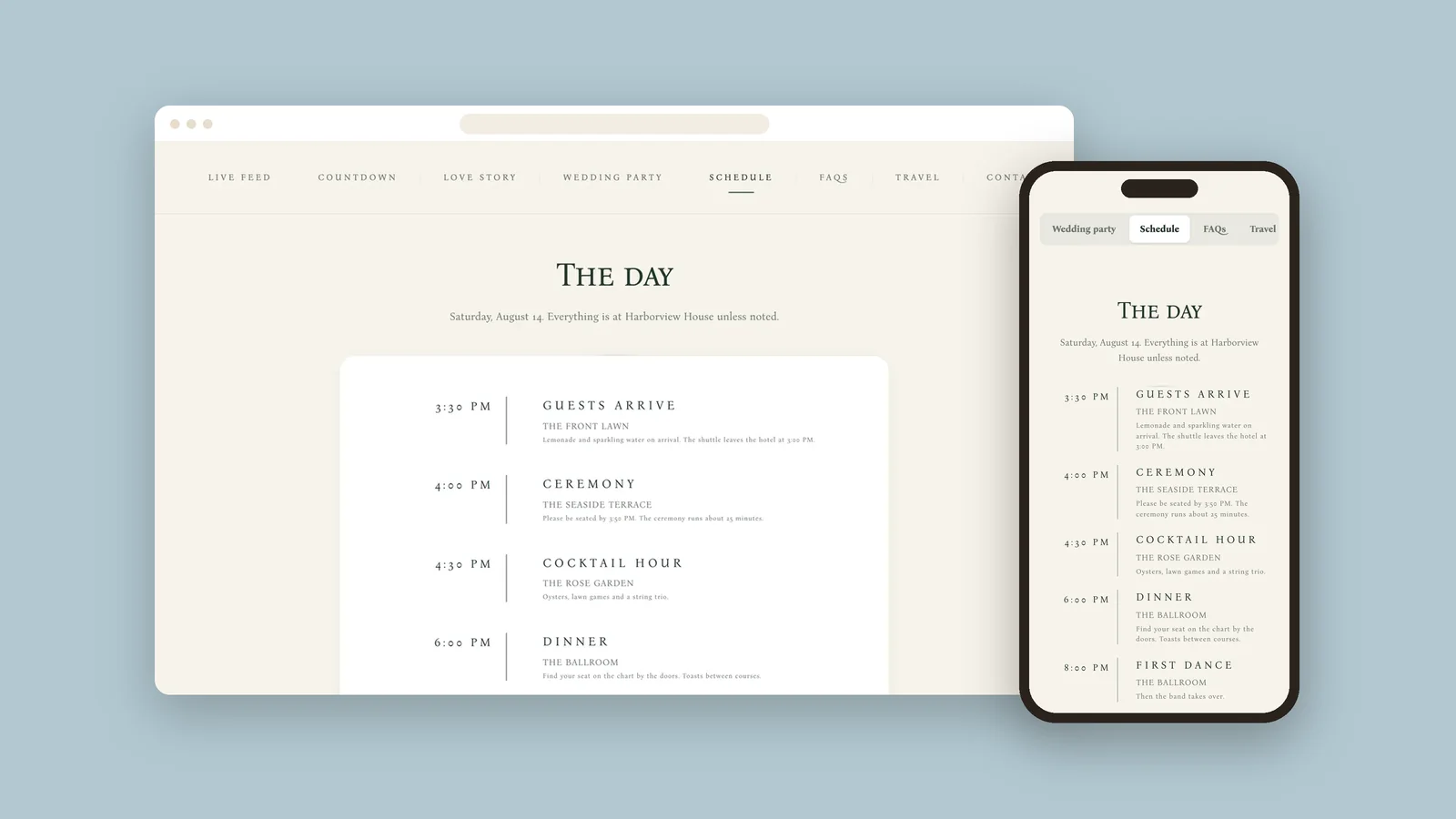
Guests need to know when to arrive and where to go. Give each part of the day its own line: the time, the moment, and the spot. Add a short note where it helps, like when the shuttle leaves. List a welcome dinner or a brunch too, if everyone is invited.
Example: "4:00 PM. Ceremony in the rose garden. Please find a seat by 3:50."
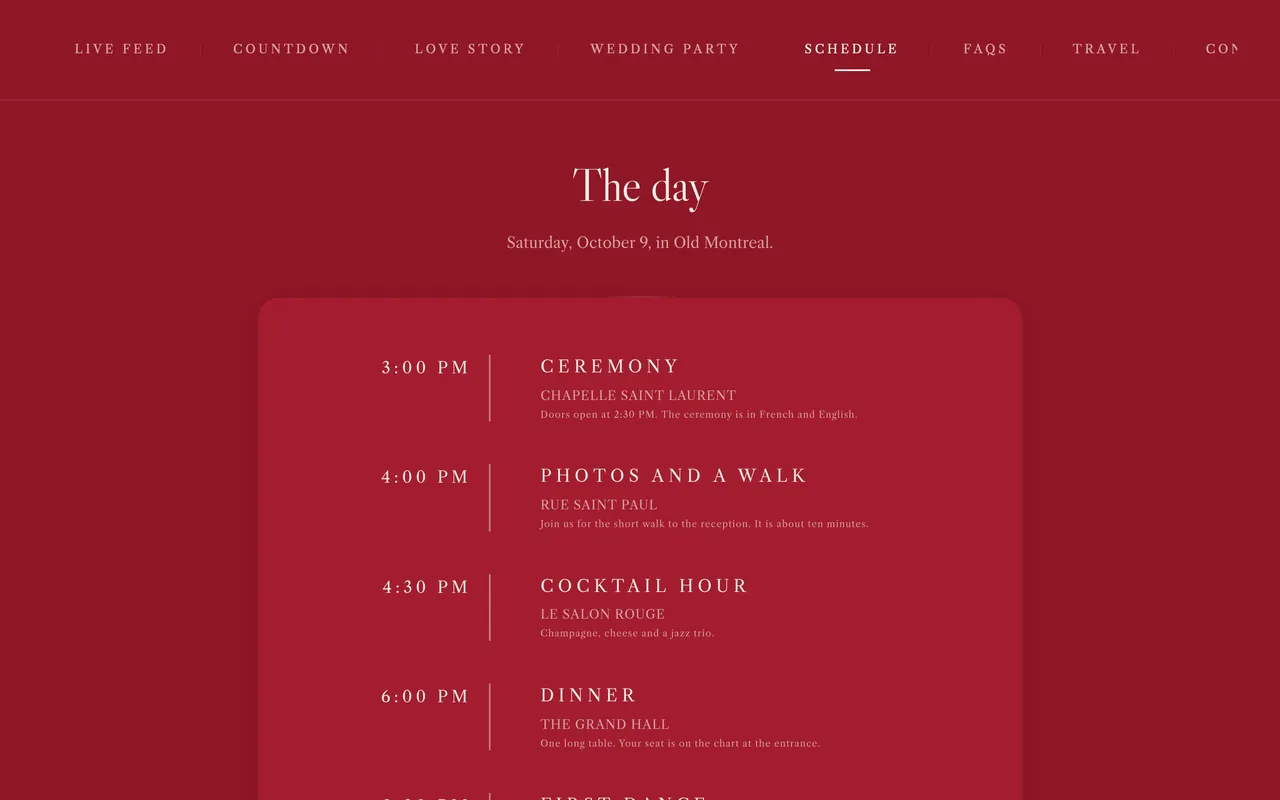
The help guide on how to add your wedding schedule shows every field. Each guide linked below does the same for its section.
Travel, hotels, and parking
Guests from out of town plan around this page. Give the nearest airport, where to park, and whether there is a shuttle. List each hotel with its booking link and the group code for your room block. Write out the full venue address so it can go straight into a map app.
Example: "Park in the lot behind the barn. A shuttle leaves the Grand Hotel at 3:15 PM."
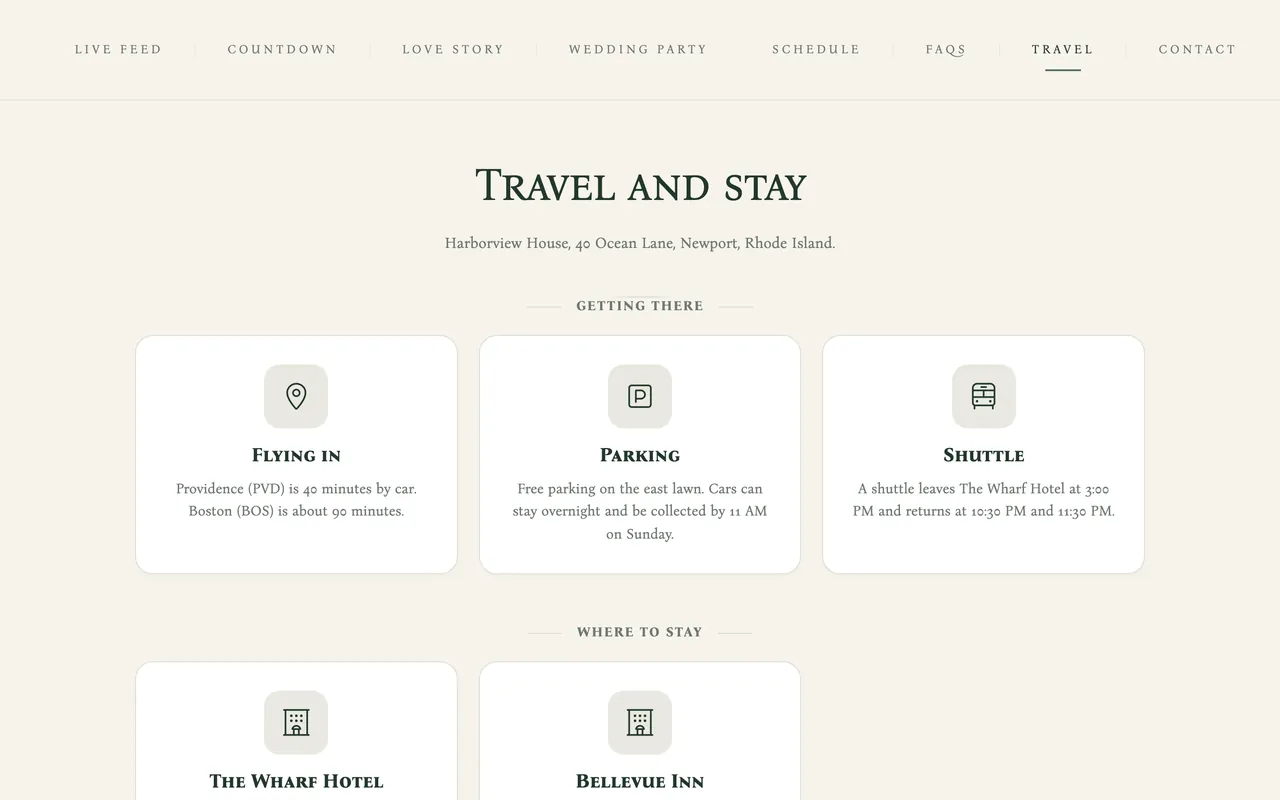
On Wedibox the travel section has three parts: getting there, where to stay, and things to do. See how to add travel and hotel info for guests.
How to RSVP, and the deadline
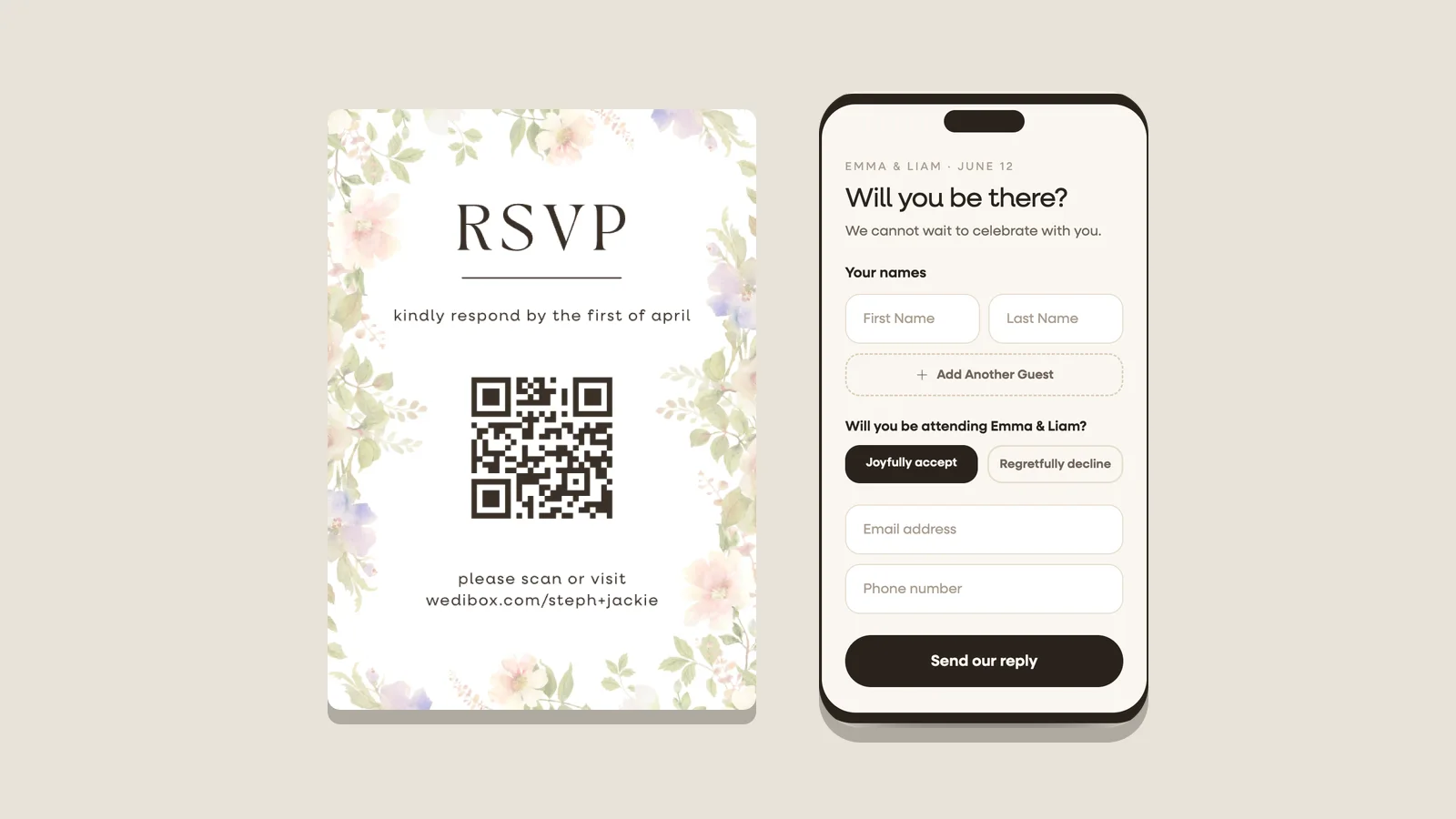
Tell guests how to reply and by what date. Ask your caterer or venue when they need the final count, then set your deadline ahead of that. An online RSVP form saves you from counting reply cards by hand. If you want replies by mail only, say so here.
Example: "Please reply by July 1. Tap RSVP at the top of this page."
On Wedibox you can build the RSVP form on the Free plan. Guests can send replies once your event is on the All-In-One plan, which is $79 one time.
The dress code
Say what to wear in words a guest can act on. A label like cocktail attire helps. A note about the ground and the weather helps more. Wedibox has no page just for the dress code, so put it in the questions section or in a schedule note.
Example: "Garden formal. Pick shoes that can cross a lawn, and bring a layer for after dark."
Registry links
Guests look for your registry on the website. Give it a spot of its own, lower on the page. The Emily Post Institute's wedding website tips say registry links are fine on the site, as long as they are not the first thing a guest sees. Add a short thank you above the links.
Example: "Having you there is the gift. If you would like to give something more, our lists are below. Thank you."
Wedibox brings every store and fund together behind one wedding registry QR code. Registry links show to guests on the All-In-One plan, $79 one time. See how to add your gift registry.
Answers to the questions guests always ask
A short questions section stops the same texts from reaching you again and again. Cover what changes how a guest packs or plans. Are kids invited? Can I bring a date? Is the ceremony outside? Can I take photos during it? If your wedding is adults only, say so here in kind, plain words.
Example: "This one is adults only. We hope it gives you a night off."
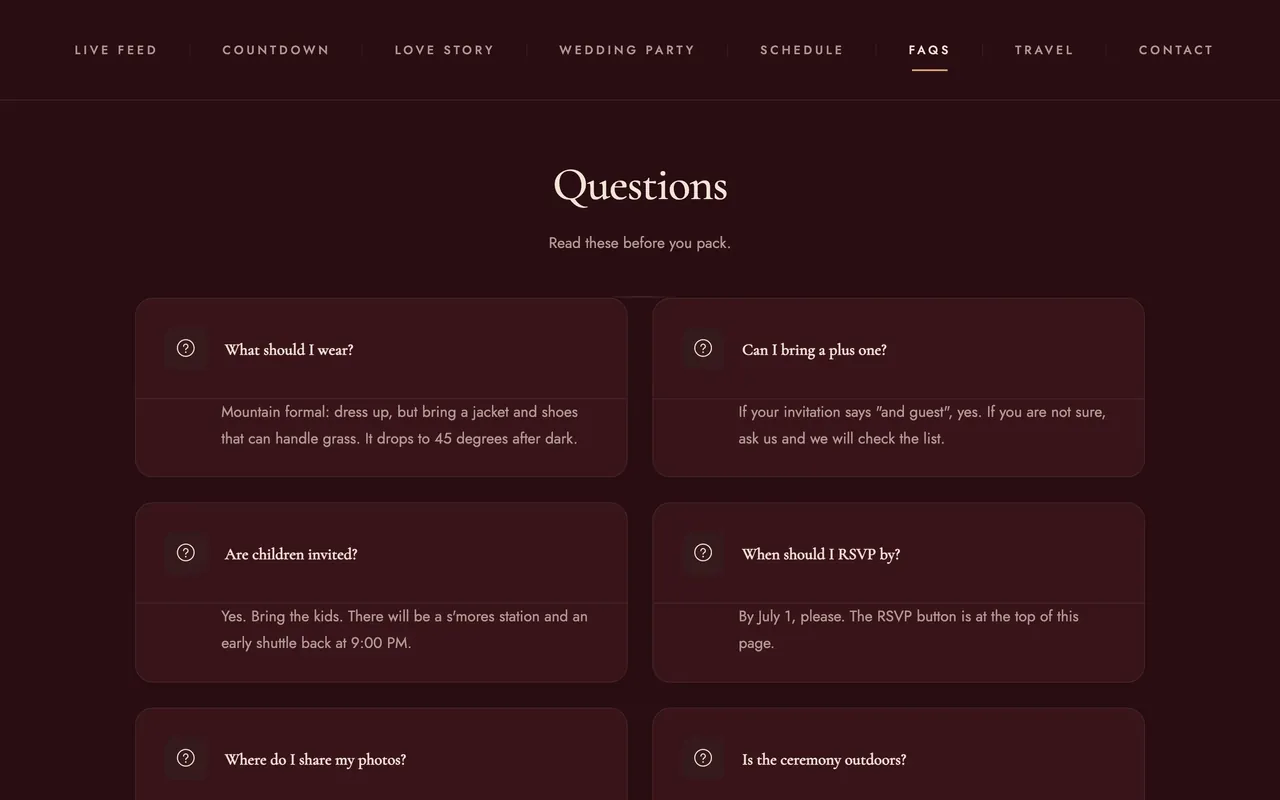
See how to add an FAQ section for the steps.
A contact for the day
On the wedding day, questions should not go to the two of you. Name one person guests can call or text: a planner, a coordinator, or a calm friend. Ask that person first. Then list a first name, a role, and a number.
Example: "Lost or running late? Text Hannah, our coordinator."
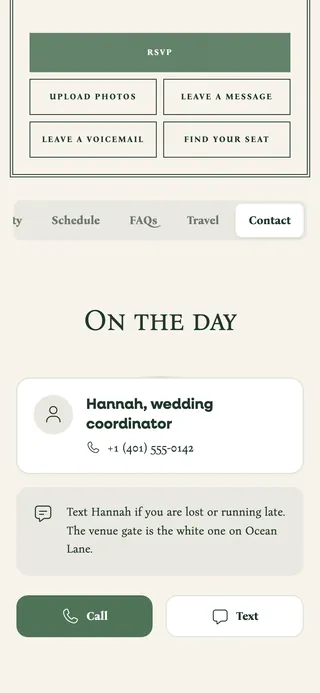
See how to add a contact section guests can call or text.
One note on cost. On Wedibox, the cover, the schedule, travel, the questions section, and the contact section all show to guests on the Free plan. Only RSVP replies and registry links need the All-In-One plan.
Nice to have on a wedding website
These parts are optional. Guests enjoy them, but no one misses the ceremony without them. Add them after the essentials are done.
Your story
Write a few lines on how you met and how the proposal went. Guests who know only one of you like this part most. Keep it light and short.
Example: "We met in a college library. Only one of us was there to study."
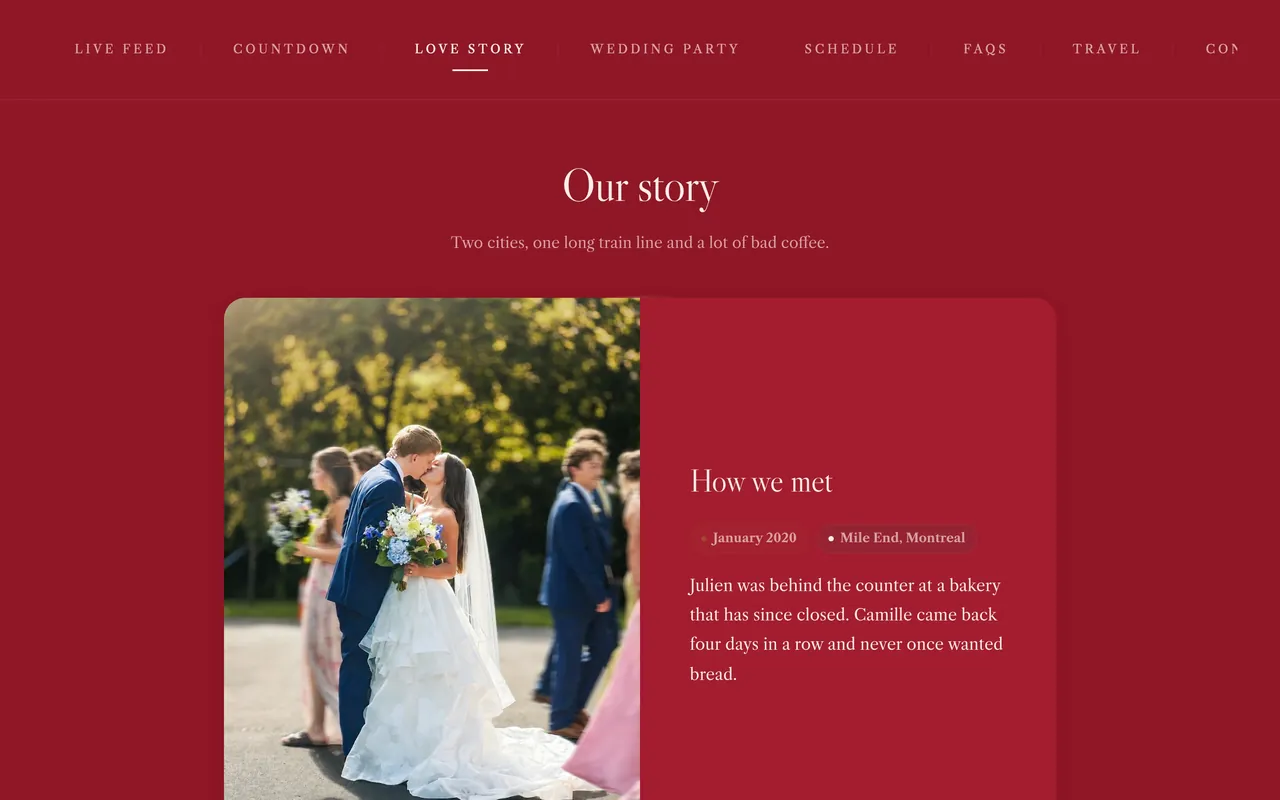
See how to add your Love Story.
The wedding party
List names, roles, and one line on how you know each person. It helps guests put names to faces before the toasts.
Example: "Dana, best man. Friends since the second grade."
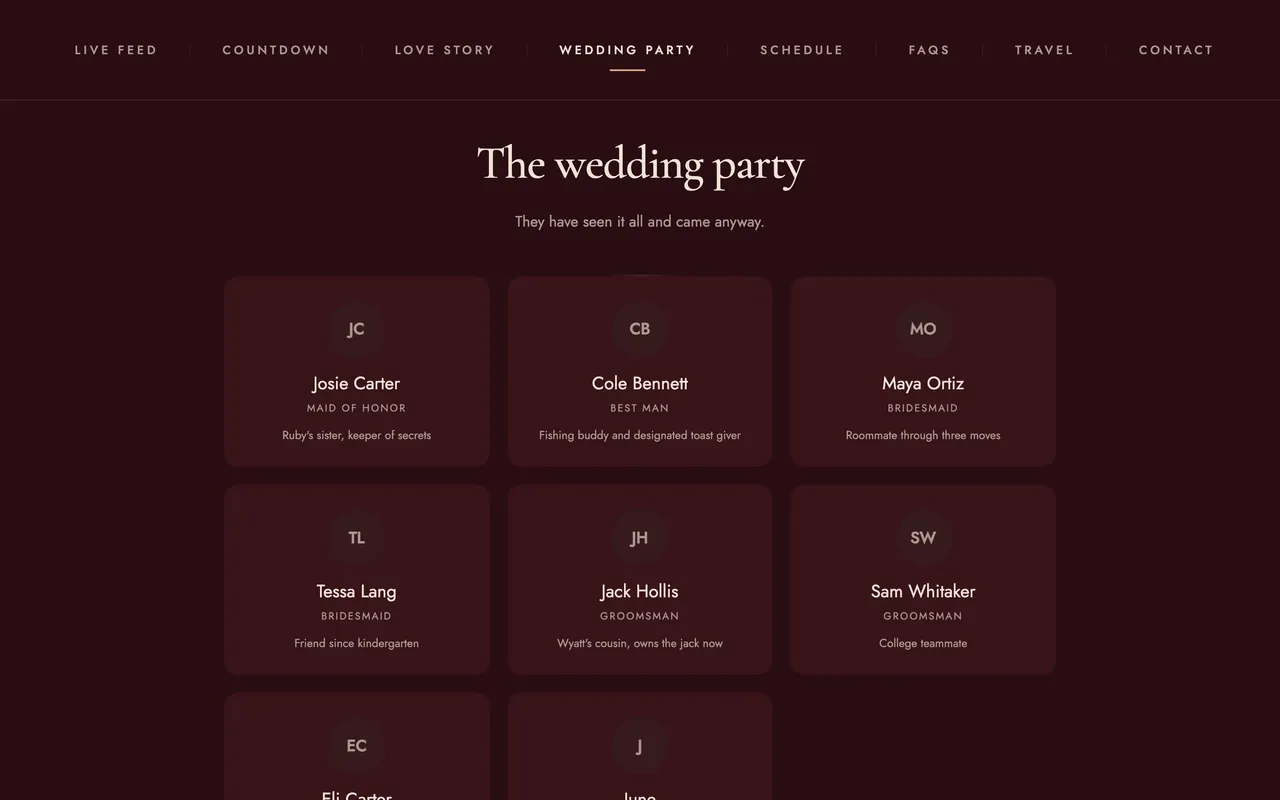
See how to introduce your wedding party.
A countdown
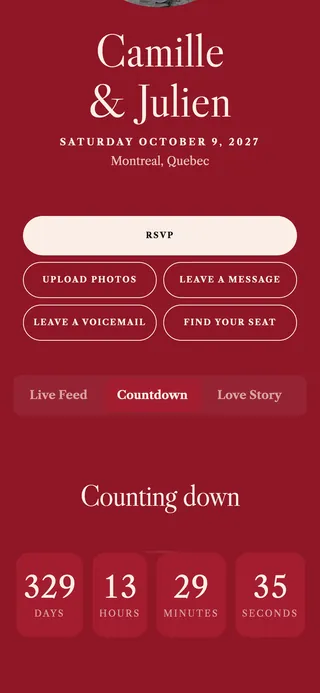
A countdown is a small clock that counts the days to the wedding. It needs no upkeep. On Wedibox it follows your wedding date on its own. See how to add a countdown to your wedding.
Things to do nearby
This helps when guests travel in and have a free morning. Name a coffee shop, a walk, and a place for brunch. On Wedibox these picks live in the travel section.
A place for guests to share photos
Guests take photos you will never see unless you ask for them. Give them one place to send them, and say so on the site before the day. A QR code for wedding photos on each table does the job. If you want phones away during the ceremony, say that too. On Wedibox, the first 50 guest uploads are free, and the Wedding plan, $49 one time, makes uploads unlimited.
Song requests
Ask each guest for one song that gets them on the dance floor. On Wedibox, song requests are part of the playlist, which comes with the All-In-One plan.
What to leave off your wedding website
Leave off anything a stranger should not read and anything that will go out of date. A wedding website link gets passed around, so treat the page as public.
- Personal phone numbers and emails. The only number on the site should belong to the contact for the day, who agreed to it.
- A home address. Guests who need it can ask you.
- Gift amounts. A registry is a list of wishes, not a bill.
- Events only some guests are invited to. A rehearsal dinner on a page everyone can read tells some guests they were left out. Send those details straight to the people invited.
- Very private stories. Every guest can read your story page. Keep it sweet and general.
- Anything stale. An old RSVP date or a closed hotel block confuses guests. Check the site each time a plan changes.
- Too many pages. If a guest has to hunt for the start time, the site is too long.
The Emily Post guide linked above backs three of these: private moments, events for only some guests, and too many pages.
Who can see your wedding website
A wedding website is a link, and a link opens for anyone who has it unless the builder adds a lock. That is fine for a schedule and a dress code. It is also the reason the items above stay off the page. Three things decide how private your site is.
- The link. A link with both last names and the year is easy to guess. First names with a short ending are harder. Keep anything private out of the address itself.
- Search engines. Ask whether your builder lets search engines list your page, and whether you can turn that off.
- A password. A password helps when the page holds something you would not post in public, like the address of a home wedding. It has a cost. Every guest needs the password, and some will still text you for it.
Here is how Wedibox works. Your page opens for anyone who has the link or the QR code. There is no password on the page itself. The page is not in any directory, and it carries a tag that asks search engines to leave it out of results. RSVP replies are seen only by you and your co-organizers. You can set a password that guests must enter before they upload photos. The guide to who can see what on Wedibox has the full map.
When each part should be ready
Have the basics up before your save the dates go out, and the whole site up before your invitations go out. That advice comes from the Emily Post Institute's wedding website tips. Its wedding planning timeline places save the dates three to six months before the wedding, or earlier, and invitations six to eight weeks before.
| When | What should be ready | Why |
|---|---|---|
| Before save the dates go out. Emily Post: three to six months before the wedding, or earlier. | Your names, the date, and the city. Hotels and travel basics if guests will fly. One line that says more details are coming. | A save the date sends guests to the site. It should not be empty. |
| Before invitations go out. Emily Post: six to eight weeks before the wedding. | The schedule with start times, the venue address, how to RSVP and the deadline, the dress code, registry links, and the questions section. | The invitation is when guests book rooms, plan outfits, and reply. |
| The last weeks before the wedding | The contact for the day, final shuttle times, the weather plan, and how to share photos. Check every time and address once more. | Guests open the site again as the day gets close. |
| After the wedding | A short thank you and a few photos. | Emily Post notes that a site can carry wedding photos afterward. A thank you on the site does not replace your handwritten notes. |
Treat these windows as a guide, not a rule. If guests need to book flights, lean early.
How guests find your wedding website
Guests reach your site two ways: a short link they can tap and a QR code they can scan. Use both, and put them in these spots.
- The save the date. Print the QR code with the short link under it. This is often the first time a guest opens the site.
- A details card in the invitation envelope. Emily Post advises keeping the web address off the invitation itself, and suggests the reply card or a separate card. A small details card with the code and the link works well. If your invitation is less formal, a small code on the back is fine too.
- Texts, emails, and group chats. Paste the link, not the code. No one scans a code on the phone they are holding.
- A sign at the wedding. Guests can scan it for the schedule or the photo link.
Some guests are not online. Give them the key details on paper.
Only print a code that will not change. The free wedding QR code generator turns any link into a code with no signup, and the code never expires. Every Wedibox page comes with its own code too. It never changes, so you can print it early and keep editing the site. See how on the free wedding website with a QR code page.
What to put on a wedding website: the checklist
Here is what goes on a wedding website, in one table. Do the essentials first, in this order.
| What to put on your wedding website | Essential or optional | Ready by |
|---|---|---|
| Names, date, and place | Essential | Before save the dates |
| Travel, hotels, and parking | Essential | Basics before save the dates, the rest before invitations |
| Schedule with start times | Essential | Before invitations |
| How to RSVP and the deadline | Essential | Before invitations |
| Dress code | Essential | Before invitations |
| Registry links | Essential | Before invitations |
| Answers to common guest questions | Essential | Before invitations |
| Contact for the day | Essential | The last weeks |
| Your story | Optional | Any time |
| Wedding party | Optional | Any time |
| Countdown | Optional | Any time |
| Things to do nearby | Optional | Before invitations |
| Guest photo sharing | Optional | The last weeks |
| Song requests | Optional | With the RSVP |
| Thank you and photos | Optional | After the wedding |
When the list is done, open the site on your phone and read it the way a guest would. If you can find the start time, the address, and the RSVP button in a few seconds, it is ready to share. If you have not built the site yet, the step by step guide on how to create a wedding website picks up from here.